Production Service
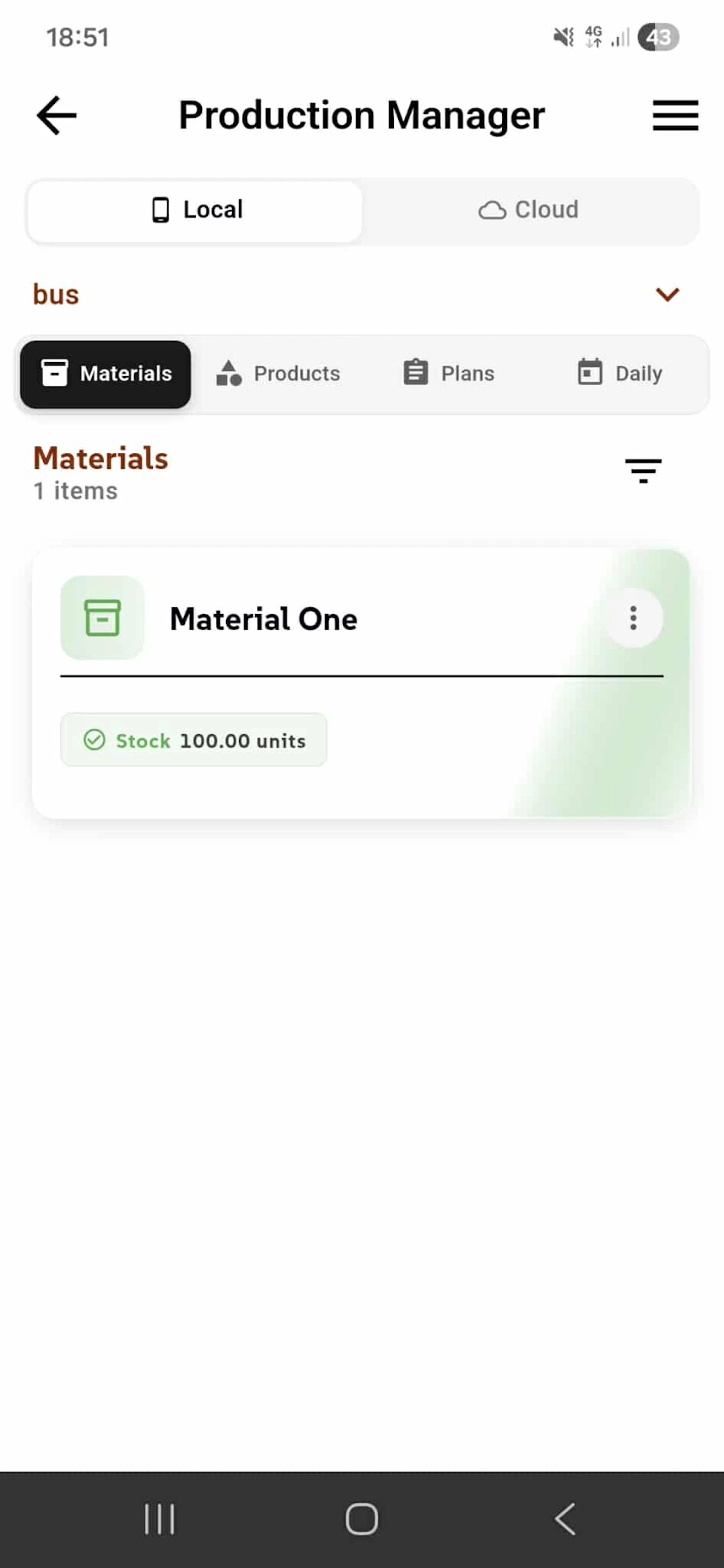
Manage your entire production workflow in one place. Create products using material components from your inventory and organize production through structured plans. Each material displays its name, current stock level, and unit count. Materials are automatically synced from the Storage Service—only items marked as "Material Component" appear here, keeping your inventory focused and relevant.
With Production Plans You Can: Create structured production plans with complete visibility. Add multiple production lines to organize parallel workflows. Attach products to specific lines for focused production. Schedule production inside each plan with precise timing. Monitor material usage in real-time as production progresses. Use filters to quickly find materials and keep your production process organized, efficient, and fully controlled.
Why This Matters Inventory Integration - Materials sync automatically from Storage. No manual updates.
Structured Planning - Plans keep production organized and trackable.
Real-Time Monitoring - Watch material consumption as it happens.
Complete Control - Filters and organization tools keep chaos at bay.
Your materials. Your products. Your production. Materials Overview.
Production Items Overview
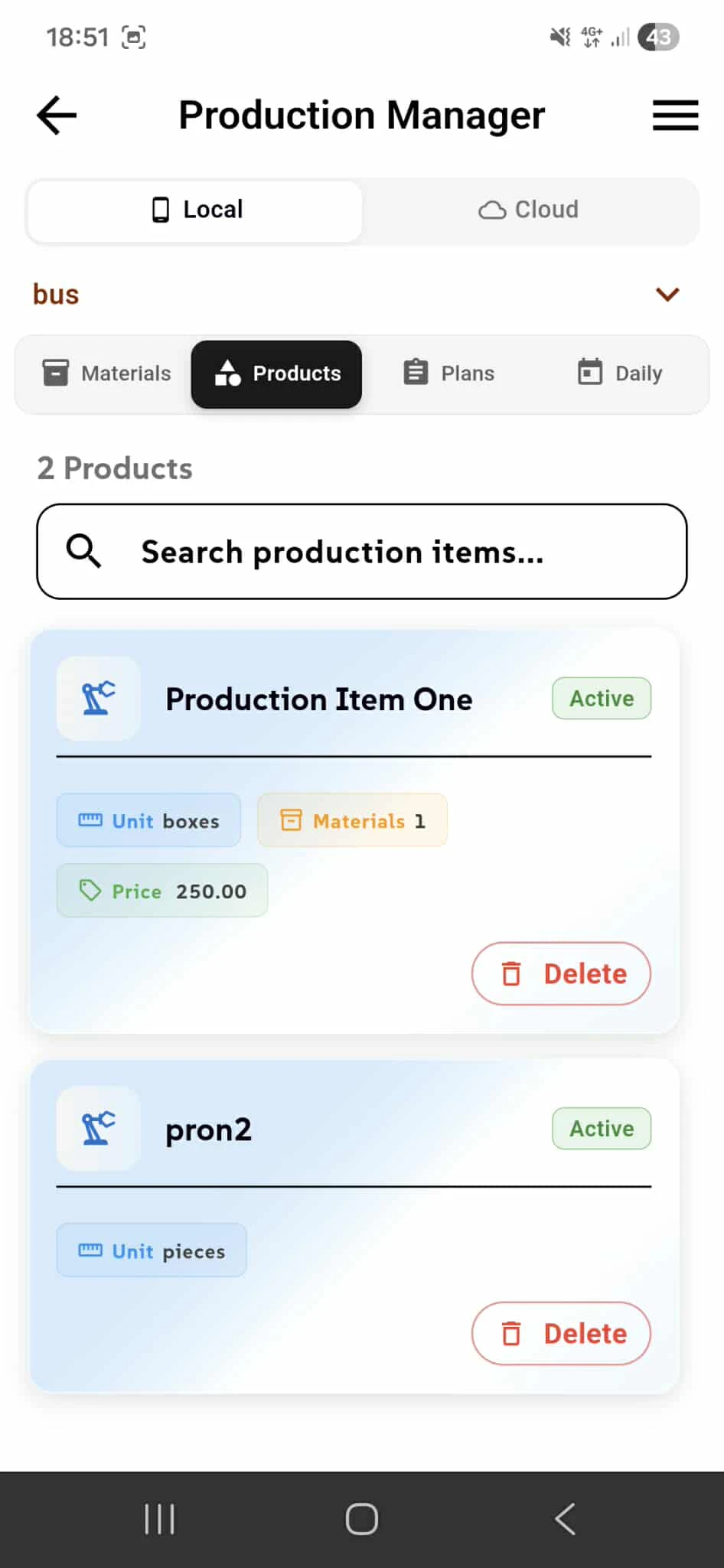
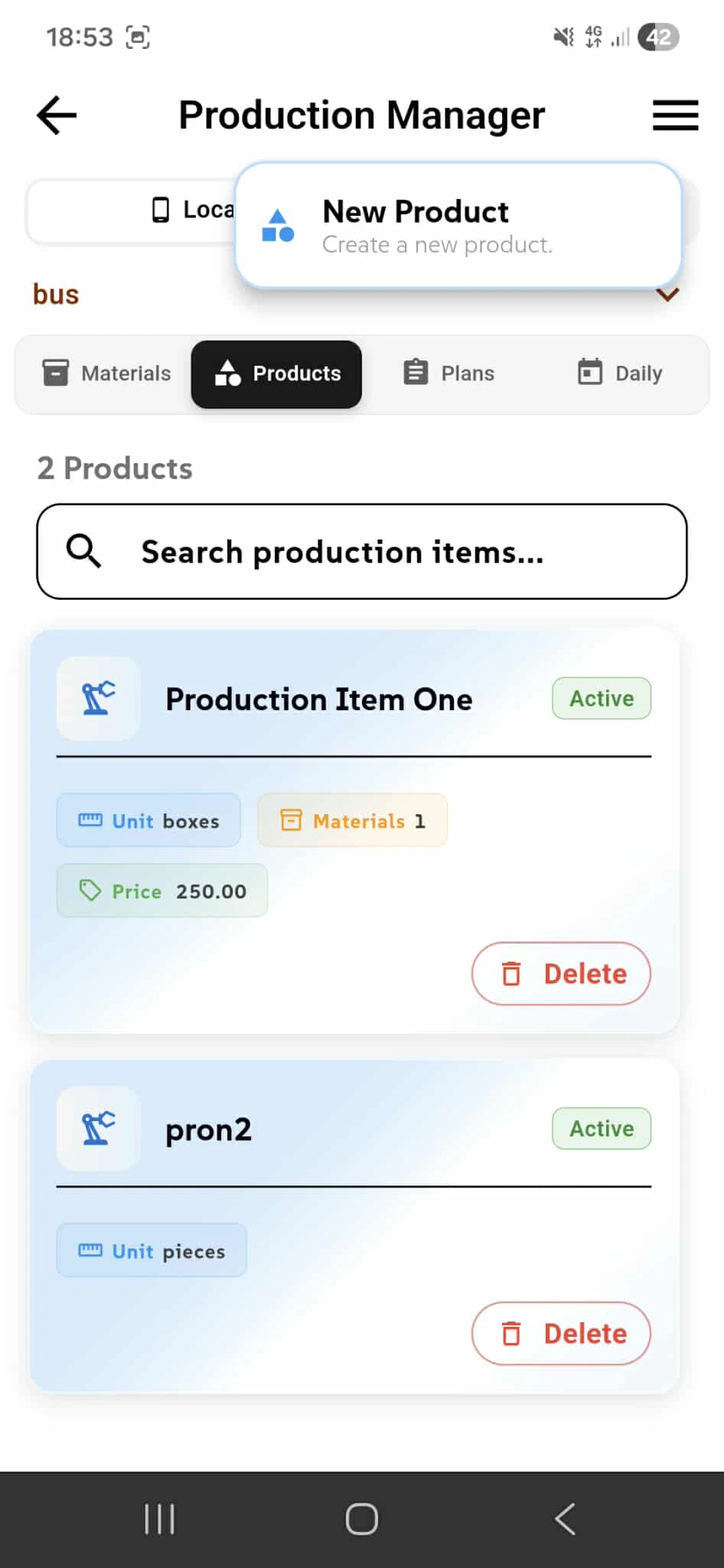
View all production items with their current status, assigned materials count, and unit price. The search bar lets you quickly locate specific products by name. Each product shows its Active status, unit type (boxes, pieces, etc.), materials count, and price. Manage products directly from this list—mark items as Active to keep them in rotation, or Delete products that are no longer needed. Items can be edited to update details, adjust pricing, or change material assignments. Keep your product catalog organized and current without navigating through menus.
Why This View Matters Complete Catalog Visibility - See all products and their details at once.
Quick Search - Find products instantly by name. No scrolling through lists.
Direct Management - Edit, delete, or toggle status without extra steps.
Status Tracking - Know which products are active and ready for production.
Unit & Price Clarity - Every product shows pricing and unit type immediately.
Production Plans Overview
View and manage all production plans. Each plan displays its
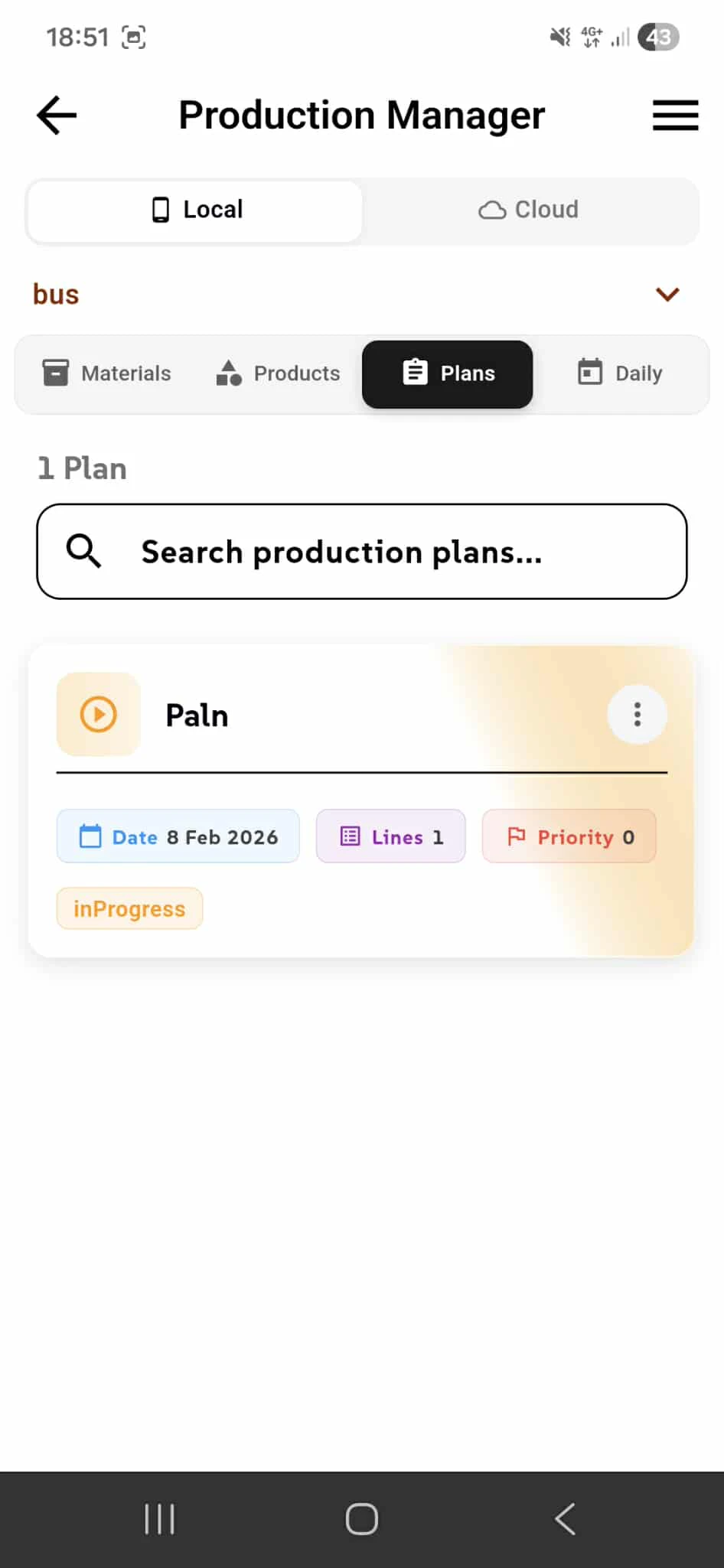
View and manage all production plans at once. Each plan displays its creation date, number of production lines, and priority level. Plans show their current progress status so you know what's on track, in progress, or completed. Use the search bar to find specific plans by name instantly. Tap "New Plan" to create a new production plan for organizing your manufacturing schedule. Each plan acts as a container for production lines and products, keeping your workflow structured and manageable.
Why Plans Matter Structured Organization - Group production lines under clear plans.
Progress Visibility - See status at a glance. Know what's on track.
Priority Management - Set priority levels to focus on what matters most.
Date Tracking - Know when each plan was created and its timeline.
Search Efficiency - Find plans instantly without scrolling.
Daily Production Overview
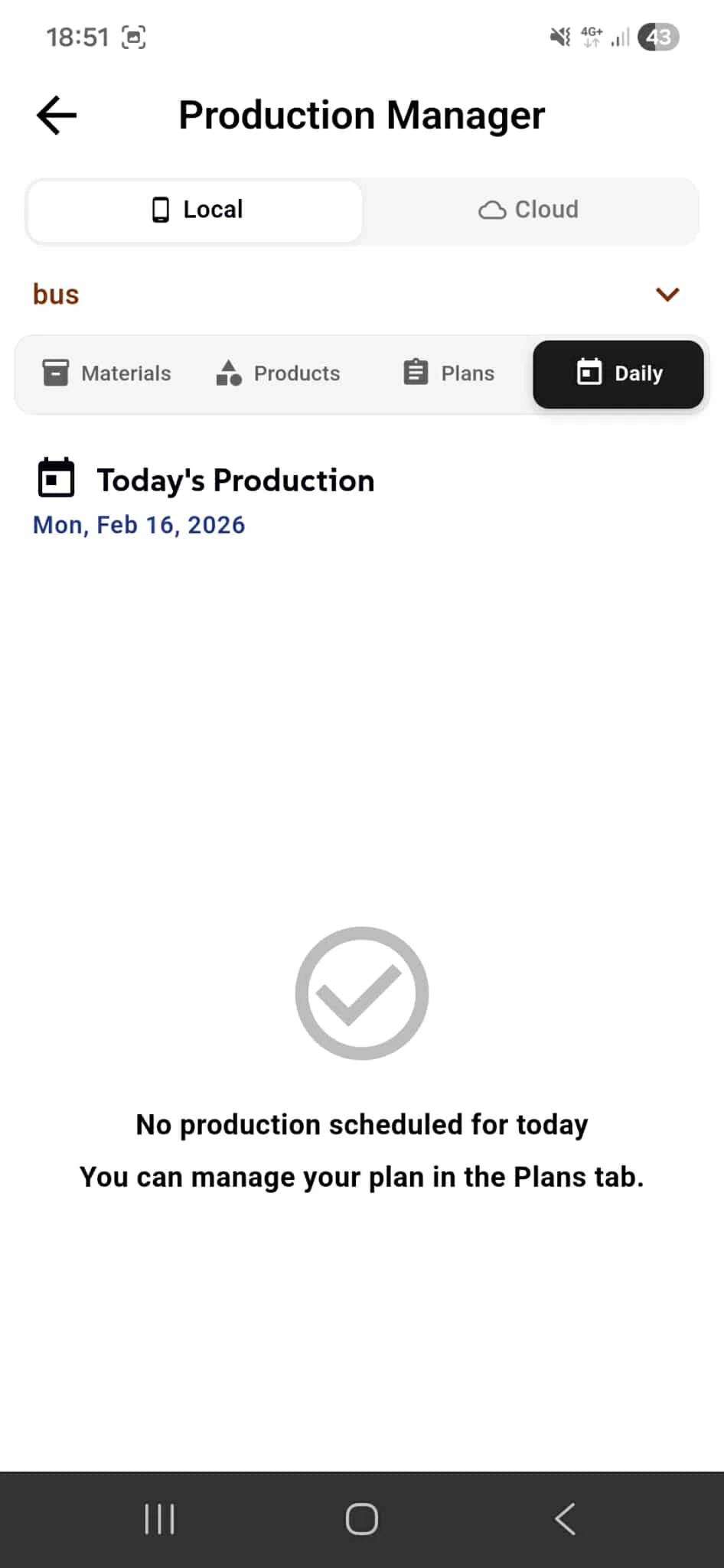
View today's production schedule at a glance. The Daily tab shows all production runs scheduled for the current date across all active plans and lines. This is your operational command center—see exactly what needs to be produced today and track progress in real-time. When no production is scheduled, you'll see a clear message directing you to the Plans tab to set up your manufacturing schedule. Use this view as your daily production dashboard to monitor what needs immediate attention and stay on top of your workflow.
Why This Dashboard Matters Daily Focus - See only today's tasks. No distractions.
Complete Visibility - All scheduled production across all plans visible here.
Real-Time Tracking - Monitor progress as production happens.
Quick Navigation - If empty, jump to Plans tab to create your schedule.
Operational Clarity - Know exactly what to produce and when.
Create New Material
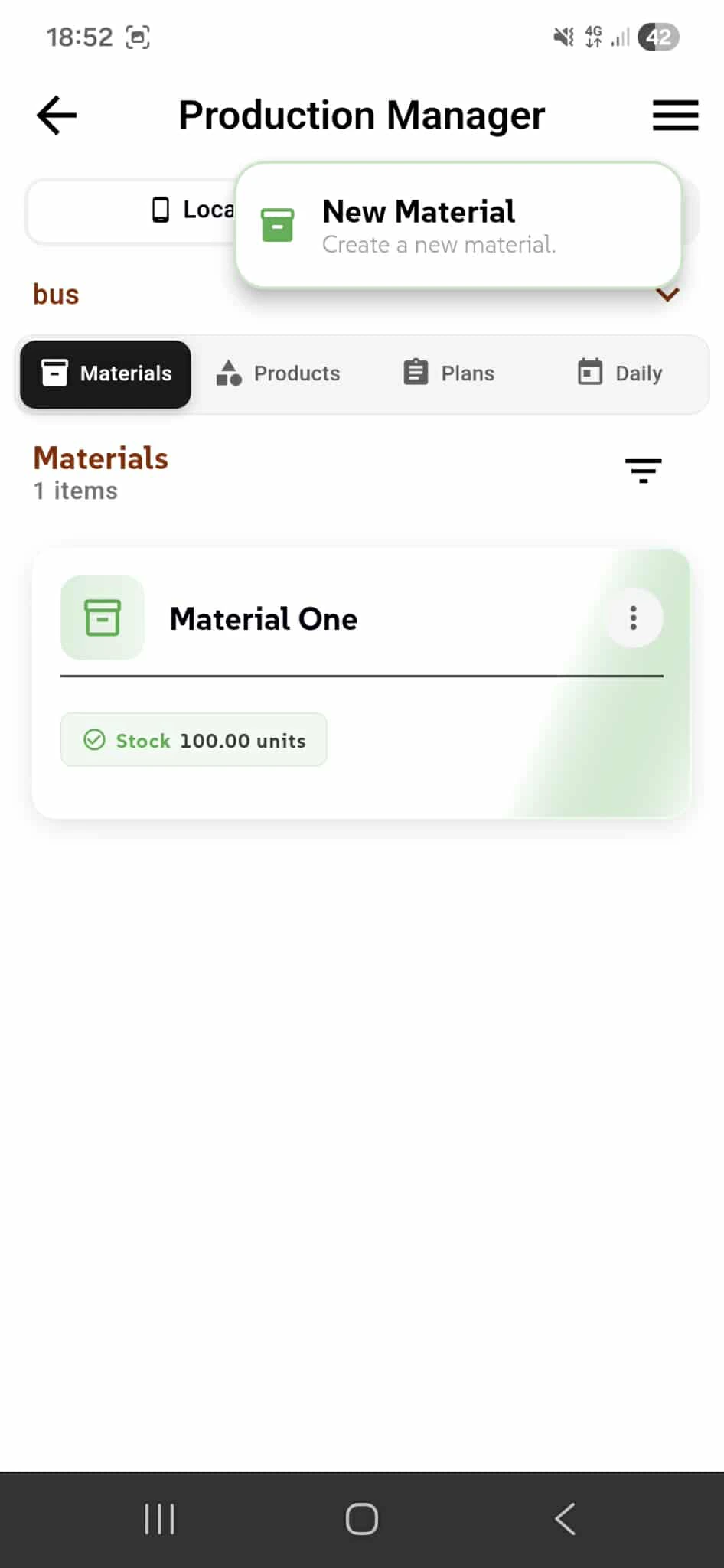
Add a new material component to your production inventory. New materials are created through the Storage Service integration. Once an item in storage is marked as a "Material Component", it automatically becomes available in the Materials tab for use in production item recipes. No manual uploads. No duplicate entries. Your materials stay in sync with your inventory, keeping your production data current and accurate. This seamless integration means your storage and production systems work together, eliminating the friction of managing materials in multiple places.
Why This Integration Matters Automatic Sync - Storage and production stay perfectly aligned.
One Source of Truth - Materials defined once in Storage, used everywhere in Production.
Stock Accuracy - Material counts always reflect actual inventory.
Zero Manual Work - No copying data between apps. It flows automatically.
Production Ready - Mark an item as "Material Component" and it's instantly production-ready.
Material Details
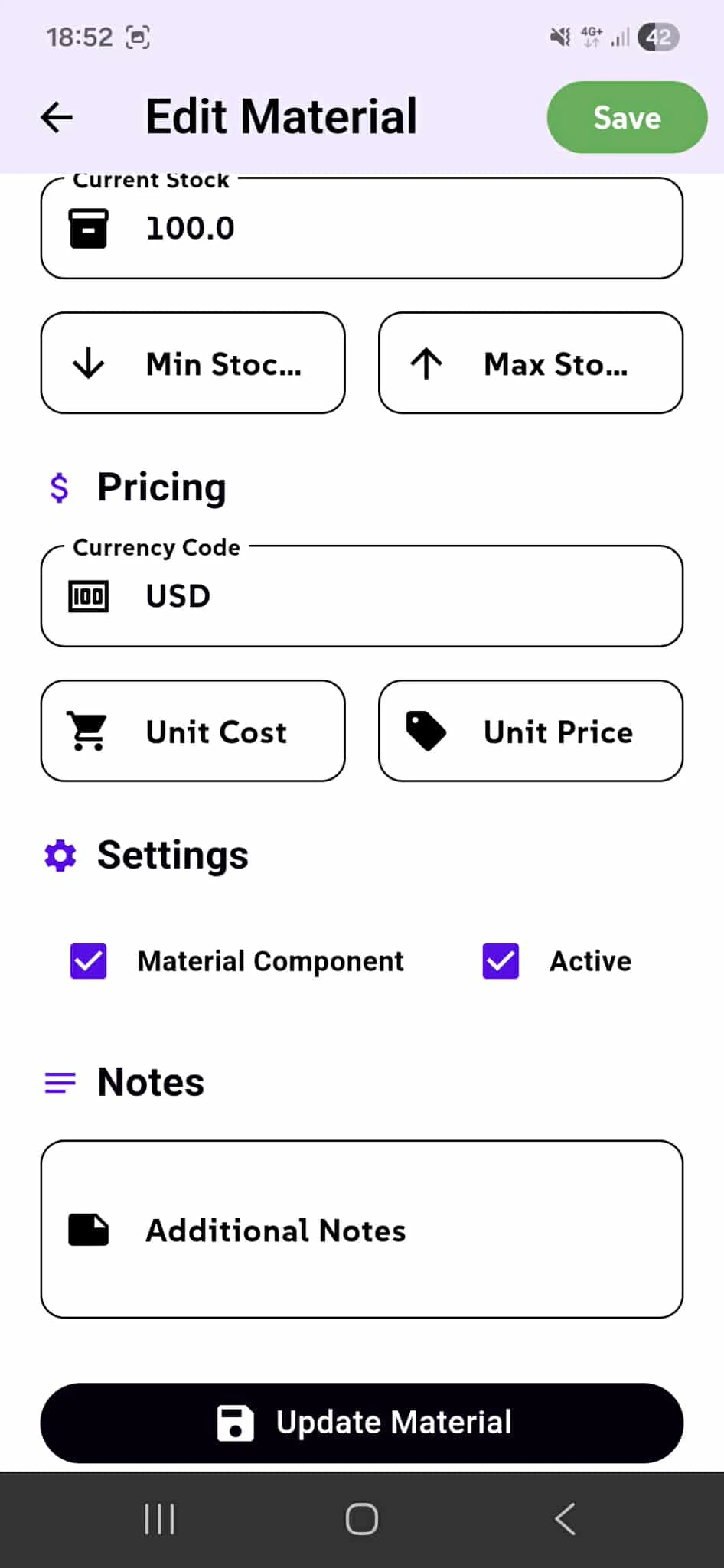
Define each material's stock and pricing information. Set the current stock level along with minimum and maximum stock thresholds to monitor inventory automatically. Configure pricing with currency code, unit cost, and unit price for accurate cost tracking and production budgeting. Toggle Settings to mark materials as "Material Component" for production visibility and "Active" to control availability. Add additional notes for special handling instructions or supplier information. Every material stores complete operational details needed for production planning and cost calculation. Save changes with the Update Material button.
Why This Configuration Matters Stock Monitoring - Min/Max thresholds alert you before stockouts.
Accurate Costing - Unit cost and price data enable real production budgets.
Flexible Control - Toggle visibility and active status without deletion.
Complete Documentation - Notes keep handling instructions accessible.
Production Ready - Mark as Component and materials appear in production recipes.
Currency Support - Price materials in any currency. Track global costs.
Create New Product
Create a new production item by defining its basic info, assigning material components, configuring pallet types, and adding tags or notes. The product creation wizard guides you through four tabs: Basic Info (name, unit type, pricing), Materials (select components and quantities), Pallets (define packing configurations), and Additional (tags, notes, special instructions). Each step ensures your product is properly configured before manufacturing begins. Set your unit type (boxes, pieces, etc.), assign material components with exact quantities, define pallet requirements, and add contextual notes for production teams. Every product stores complete operational details needed for accurate production planning and costing.
Why This Process Matters Four-Step Wizard - Guided configuration ensures nothing is missed.
Material Accuracy - Assign exact material quantities to each product.
Pallet Optimization - Define packing configurations upfront.
Team Ready - Notes and tags ensure production teams have context.
Complete Setup - Products are production-ready immediately after creation.
Cost Precision - Material assignments enable accurate production budgets.
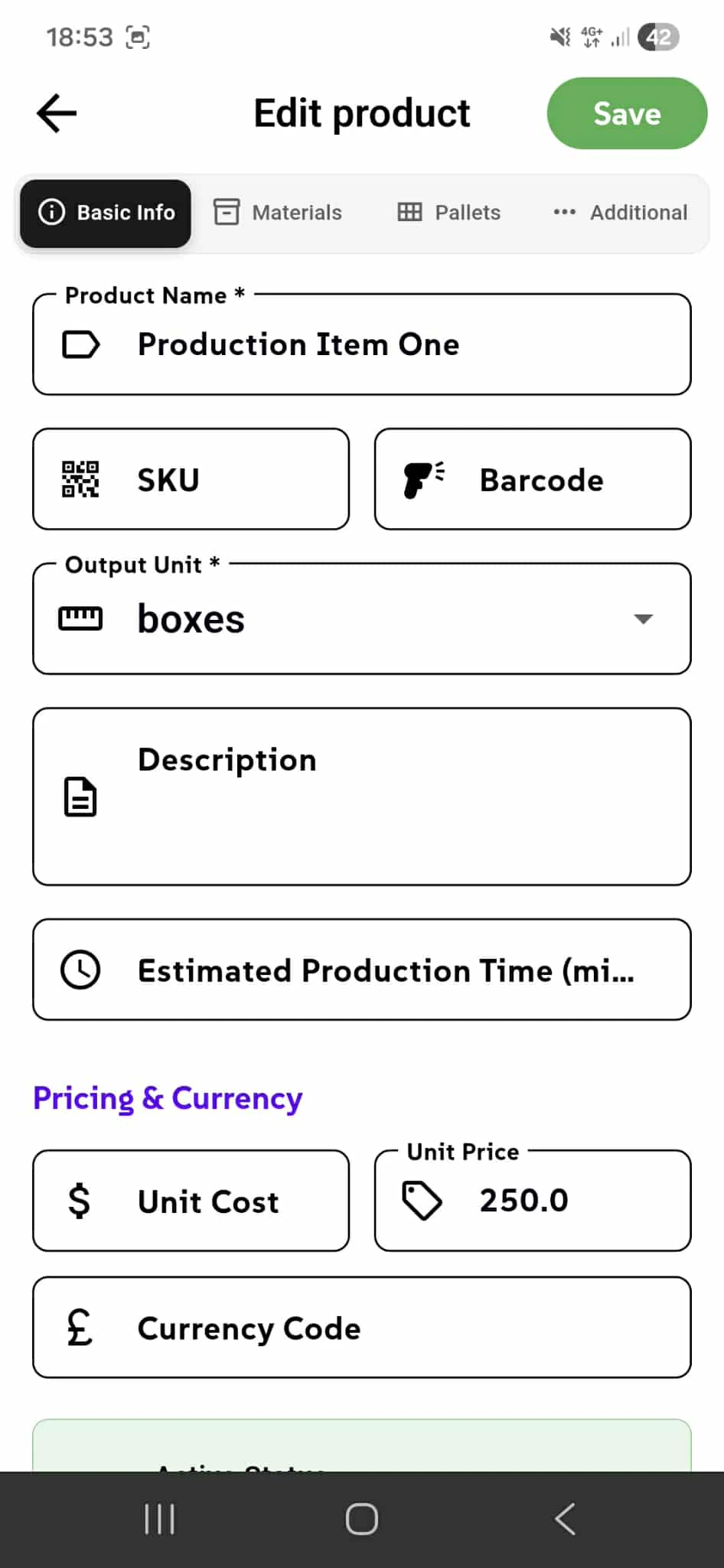
Product Basic Information
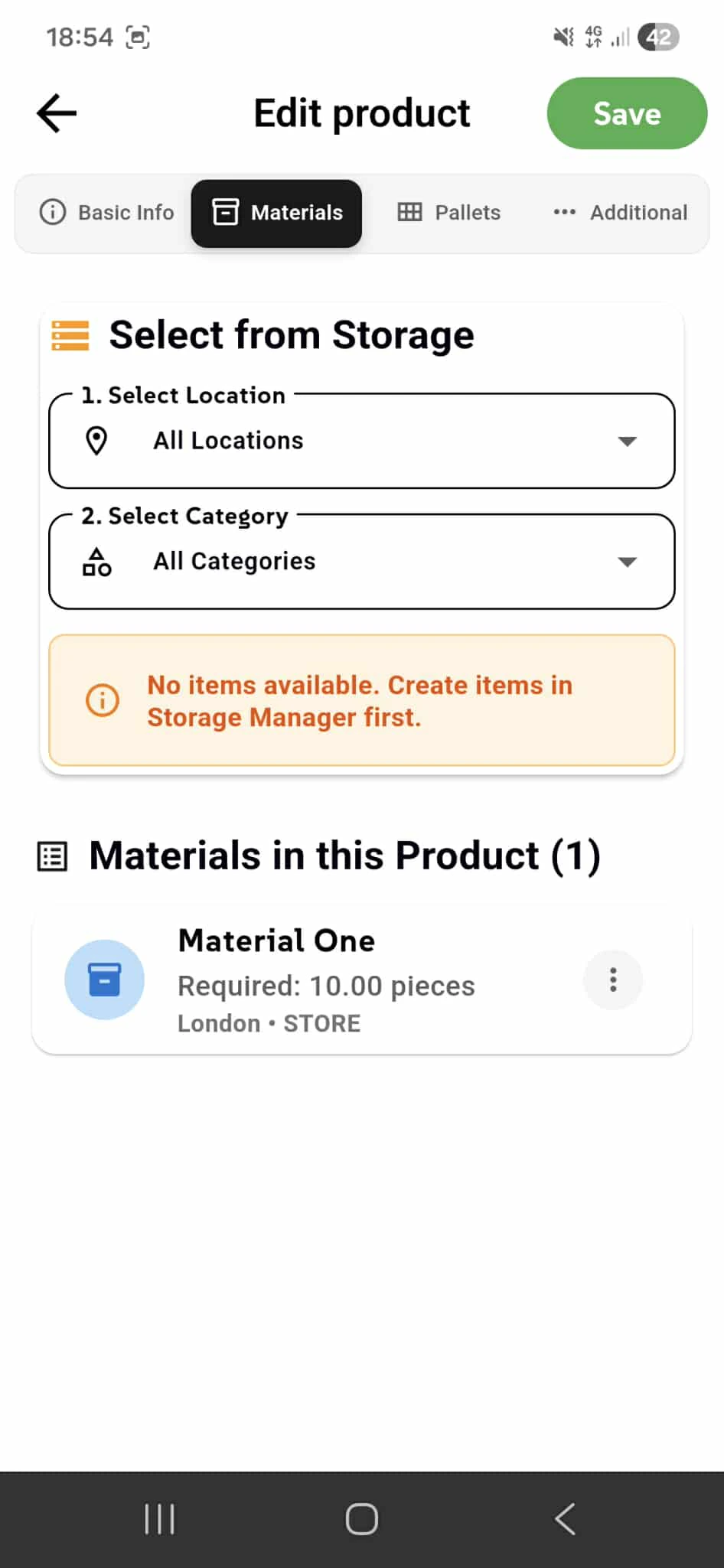
Define the bill of materials by selecting material components from your Storage inventory. Filter by location and category to find exactly what you need. Each assigned material shows the required quantity and storage location. This materials list tells you exactly what raw components are consumed each time you manufacture the product.
Why This Matters Accurate Costing - Know material consumption per product.
Production Clarity - Teams see exactly what materials are needed.
Storage Integration - Pull materials directly from your inventory system.
Location Tracking - Know where each material comes from.
Bill of Materials - Complete recipe for every product. Product Materials.
Product Materials
Configure how finished products pack onto pallets for shipping and storage. Add multiple pallet types (EURO Pallet, UK Pallet, custom) with exact units per pallet. This data automatically calculates pallet requirements across production plans and client orders.
Why This Matters Shipping Accuracy - Know exactly how many pallets you need.
Multiple Configurations - Support different pallet types for different markets.
Auto-Calculation - System handles pallet math. Zero manual work.
Logistics Ready - Pallet data feeds directly into shipping workflows.
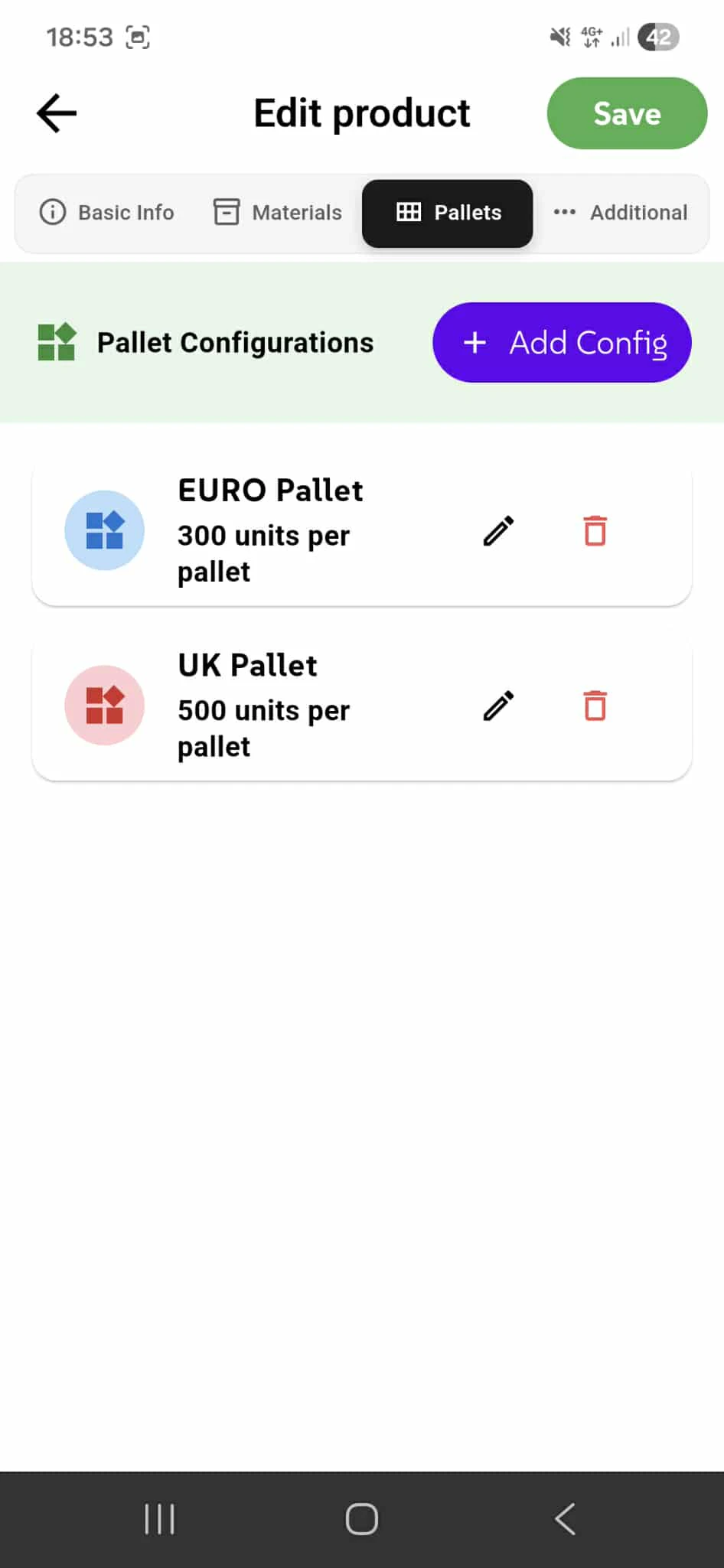
Pallet Configurations
Define the bill of materials by selecting material components from your Storage inventory. Filter by location and category to find exactly what you need. Each assigned material shows the required quantity and storage location. This materials list tells you exactly what raw components are consumed each time you manufacture the product.
Why This Matters Accurate Costing - Know material consumption per product.
Production Clarity - Teams see exactly what materials are needed.
Storage Integration - Pull materials directly from your inventory system.
Location Tracking - Know where each material comes from.
Bill of Materials - Complete recipe for every product. Product Materials.
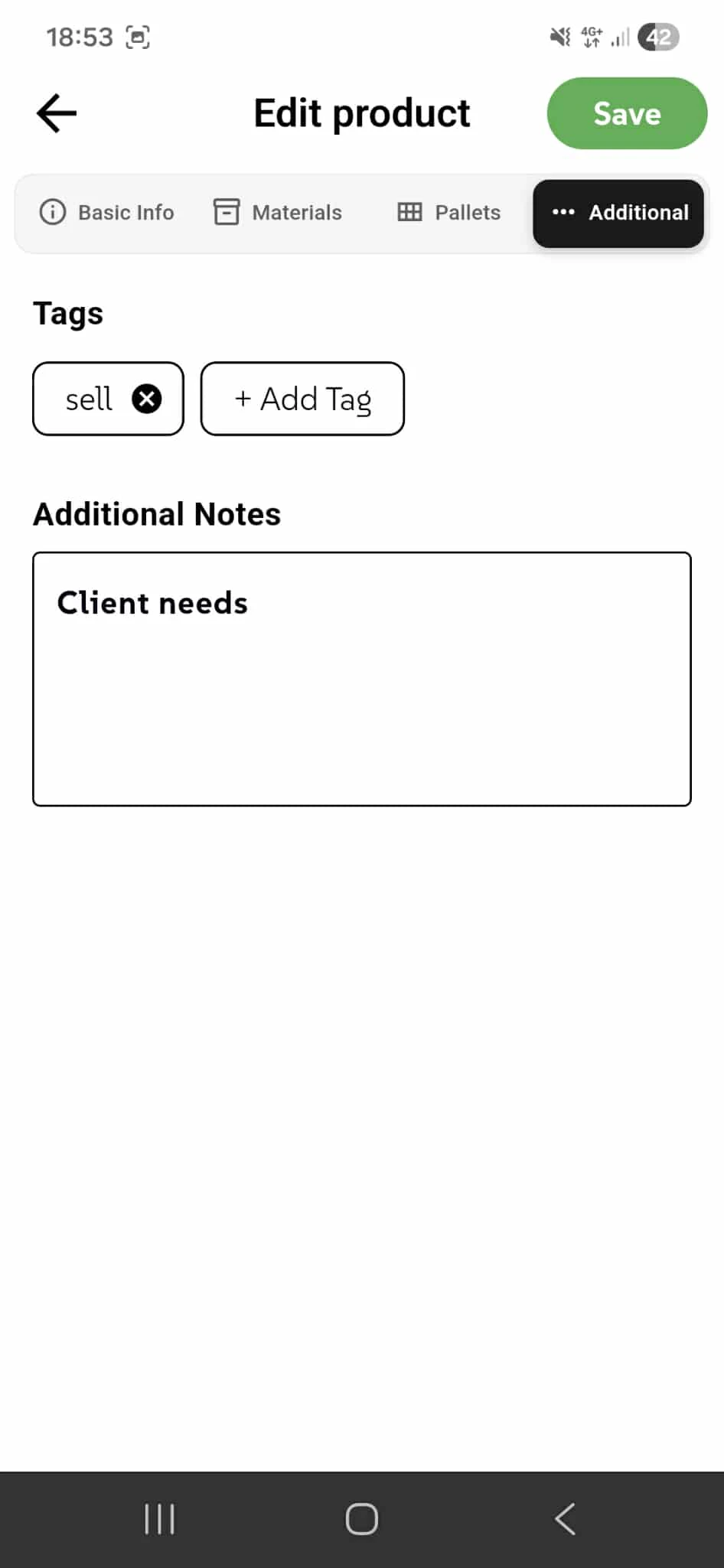
Tags & Additional Notes
Add tags to categorize and organize production items for easy filtering and grouping. Use the additional notes field to record client-specific requirements, special handling instructions, or any relevant information the production team should know during manufacturing.
Why This Matters Smart Organization - Filter products by tags instantly.
Team Communication - Notes keep critical instructions visible.
Client Requirements - Special handling captured in one place.
Production Clarity - Teams see all context before manufacturing starts.
Production Lines
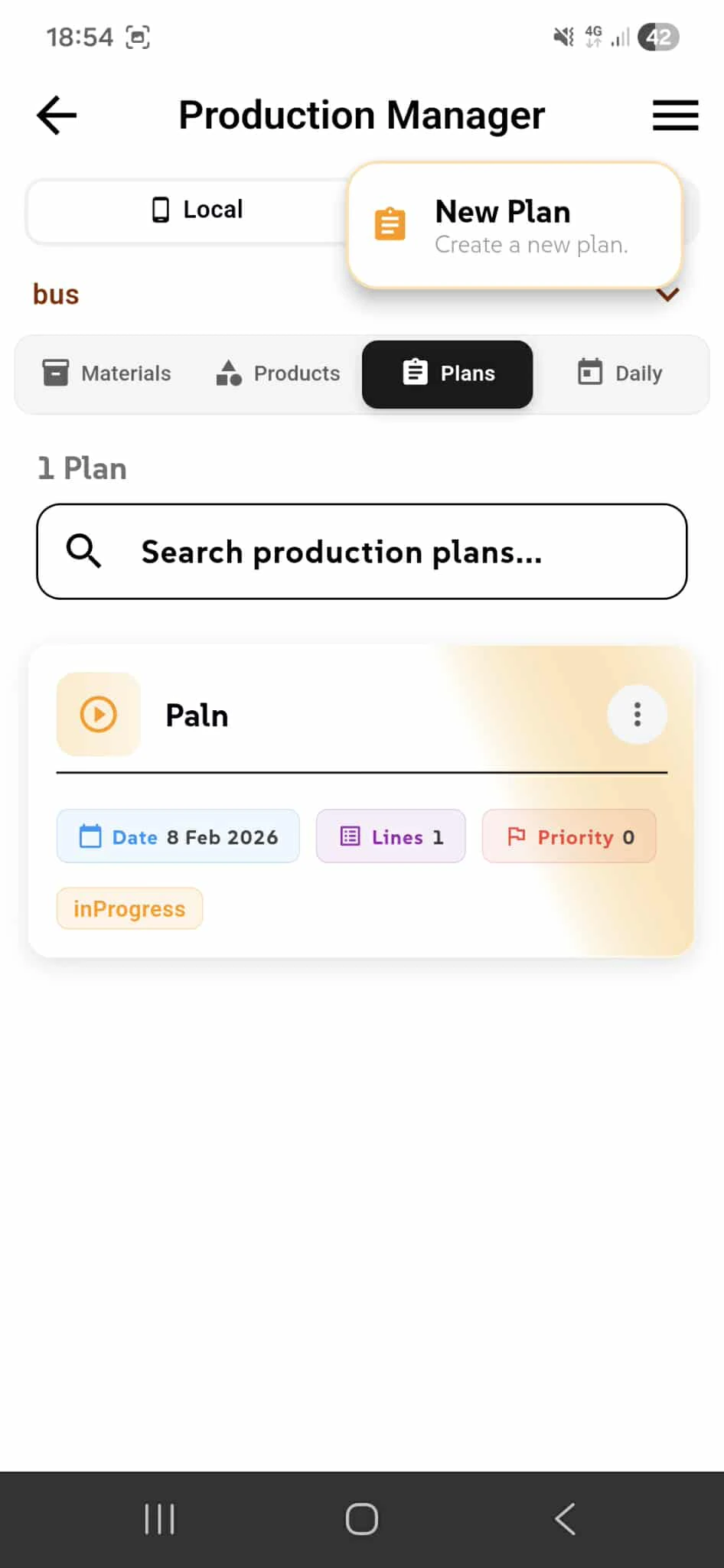
Each plan contains one or more production lines representing physical manufacturing workflows. Lines display assigned items count, live quantity tracking, pallet type, and pallet count. Each line contains a schedule of production items with dates, time ranges, and quantities. Track progress with Start, Complete, and Pause controls directly from the schedule.
Why Production Lines Matter Parallel Production - Run multiple lines simultaneously in one plan.
Live Tracking - Quantity and pallet status updates in real-time.
Schedule Control - Start, pause, or complete items on demand.
Pallet Management - See pallet requirements per line instantly.
Workflow Organization - Each line represents one production workflow.
Add Production Line
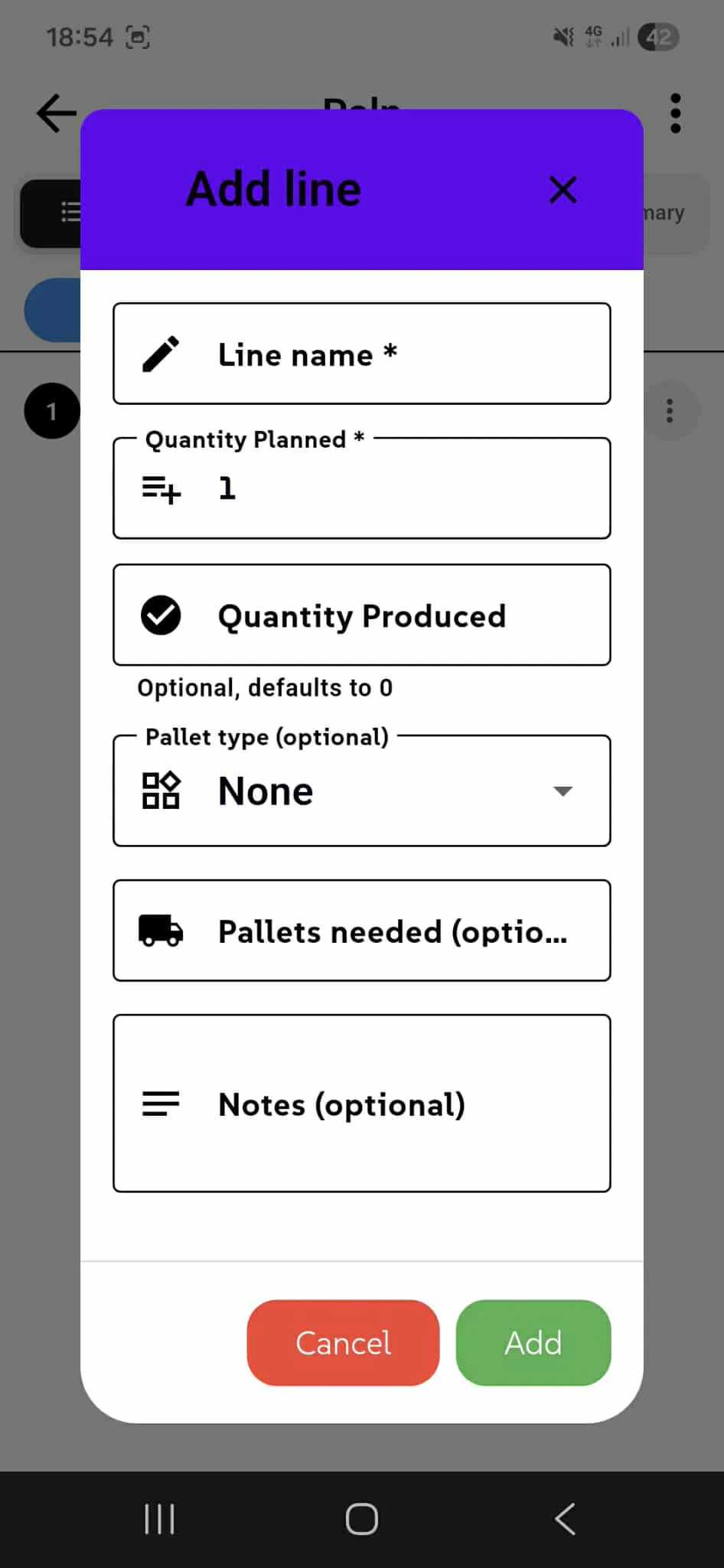
Create a new production line within a plan. Enter the line name and set the planned quantity. Track quantity produced in real-time as manufacturing progresses. Select a pallet type (EURO, UK, or None) and specify pallets needed for the production run. Add optional notes for line-specific instructions or operator requirements. Each line becomes part of your plan's schedule, organizing parallel production workflows.
Why Production Lines Matter Parallel Workflows - Run multiple lines in one plan simultaneously.
Real-Time Tracking - Planned vs. produced quantities visible instantly.
Pallet Optimization - Define exact pallet requirements per line.
Team Instructions - Notes keep operators informed and aligned.
Flexible Setup - Create as many lines as your workflow requires.
Schedule Production Run
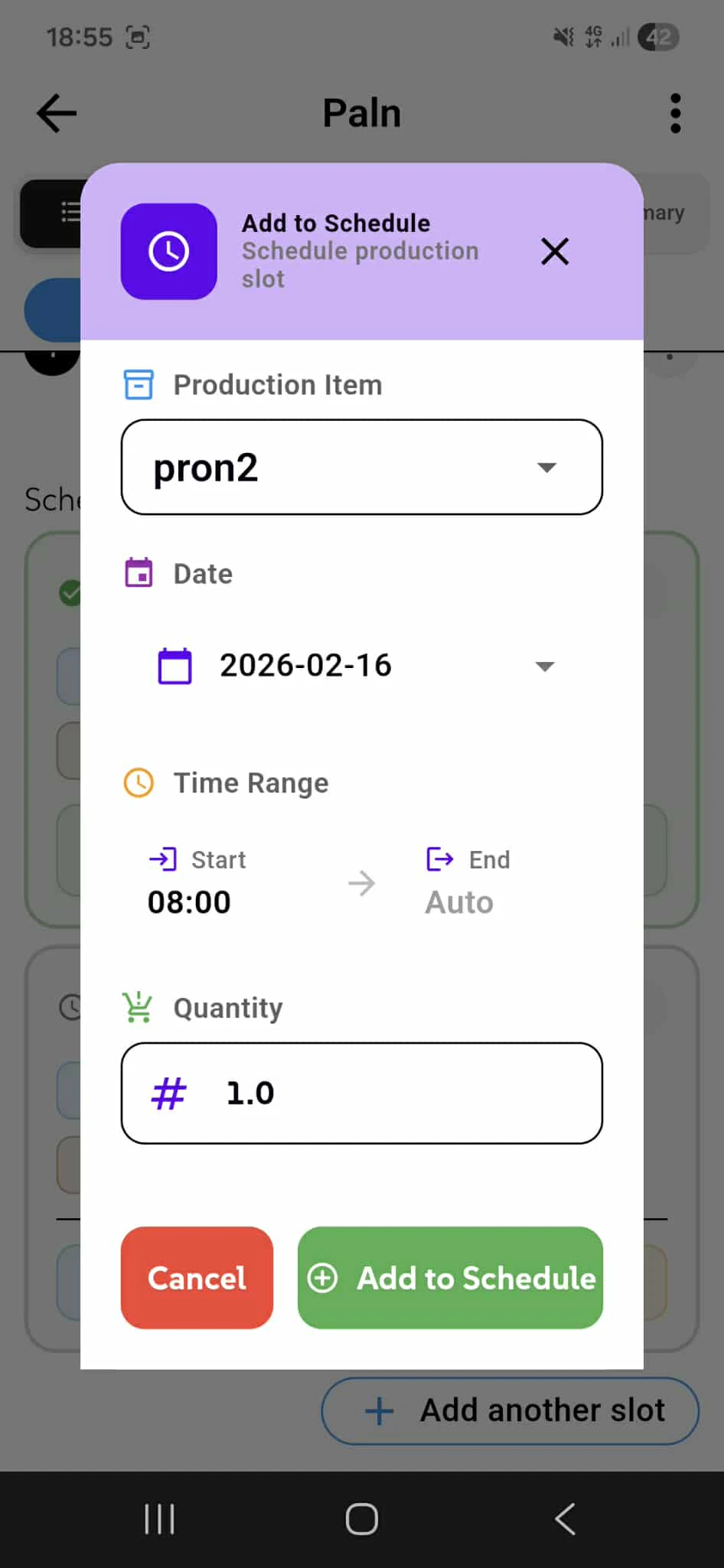
Add a production item to a line's schedule. Select the product from your catalog, set the date, and define the time range (start time with auto-calculated end based on product duration). Specify the quantity to be produced. You can add multiple schedule slots to the same line to plan consecutive or parallel production runs throughout the day. Each slot stores complete scheduling details needed for accurate production planning and material allocation.
Why Scheduling Matters Flexible Timing - Set exact start times and quantities per slot.
Auto-Calculated Duration - End time calculated from product duration.
Multiple Runs - Add as many slots as your workflow requires.
Parallel Production - Schedule multiple items on the same line.
Complete Planning - Product, date, time, and quantity all visible.
Your production schedule. Completely optimized. Production Schedule.
Production Run Status
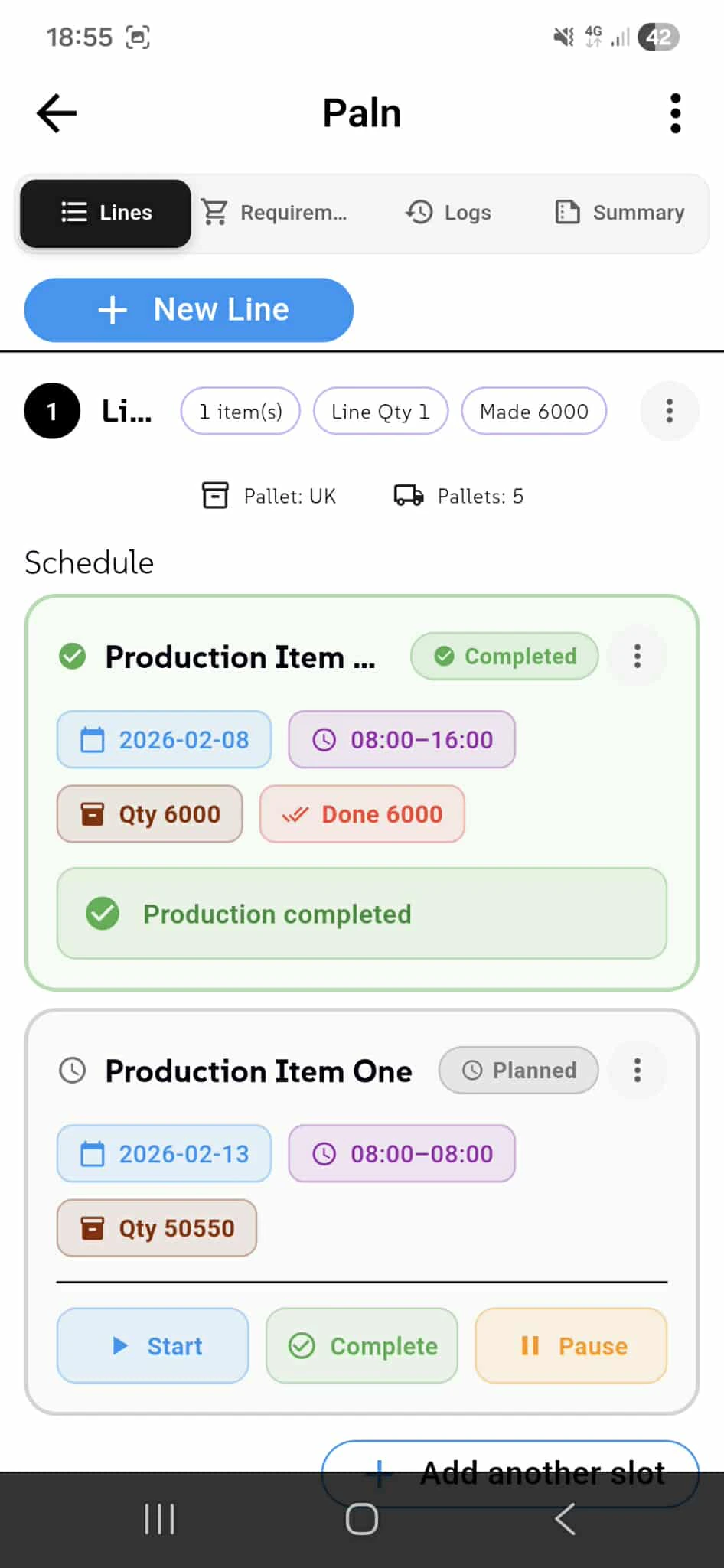
Monitor and update the status of each scheduled production run. Available statuses: Planned (awaiting start), In Progress (currently running), Paused (temporarily halted), Completed (finished successfully), and Cancelled (no longer needed). Each scheduled item displays product name, date, time range, planned and actual quantities. Edit any schedule entry to adjust details, or delete it entirely. Control production with Start, Complete, and Pause buttons. Status changes reflect across your plan and daily views in real-time.
Why Real-Time Tracking Matters Five Status States - Cover every production scenario.
Quick Controls - Start, pause, or complete with one tap.
Quantity Verification - Planned vs. actual quantities visible.
Schedule Flexibility - Edit or delete runs as needed.
Live Updates - All views sync instantly across the app.
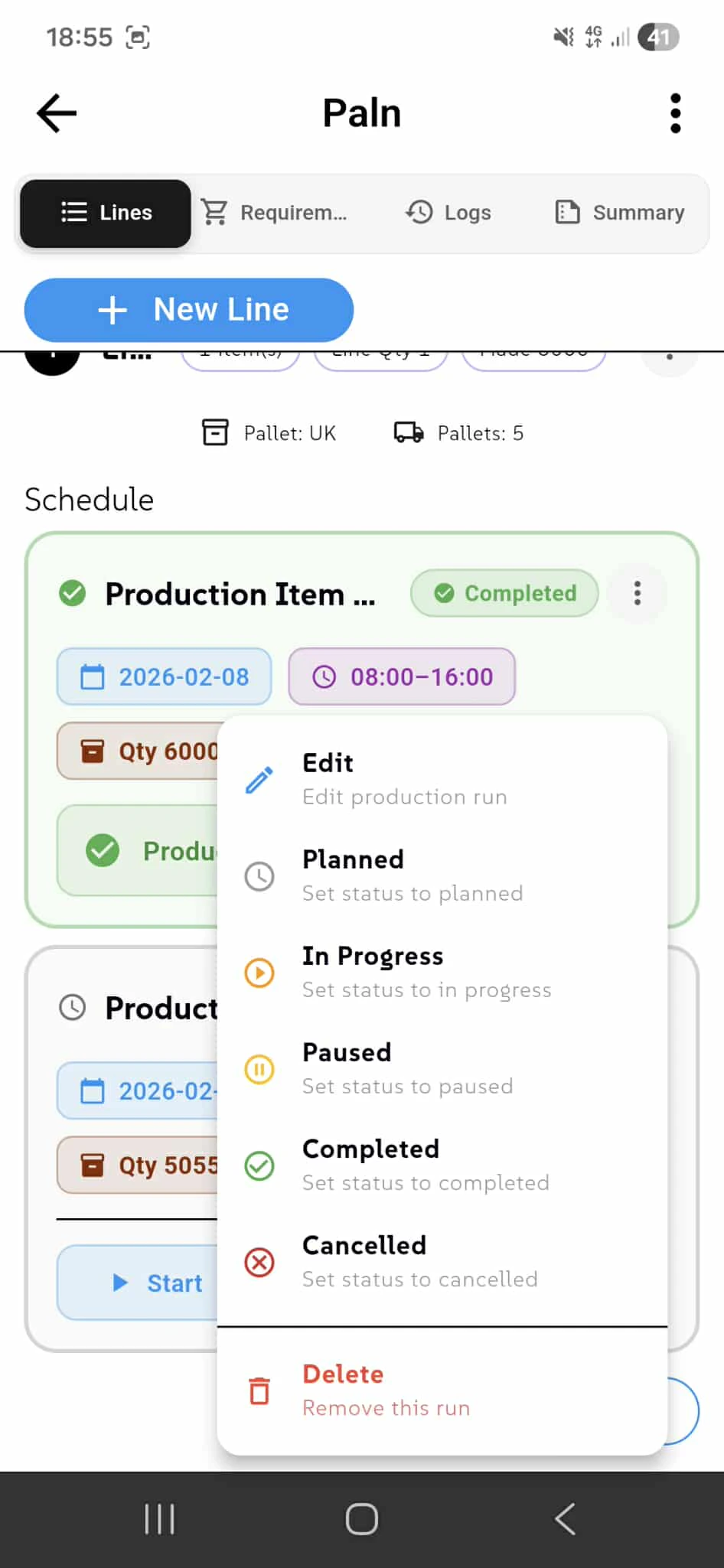
Manage Production Runs with Quick Actions
Tap any scheduled production run to open a quick-action menu. Options include: Edit (modify the run details), Planned (set status to awaiting start), In Progress (mark as currently running), Paused (temporarily halt), Completed (finish successfully), Cancelled (no longer needed), or Delete (remove entirely). Status changes update instantly across all views. This menu keeps all production controls in one place—no navigation required.
Why Quick Actions Matter One-Tap Status Change - No forms, no delays. Just tap and confirm.
Five Status Options - Every production scenario covered.
Edit Capability - Adjust details without deleting and recreating.
Instant Sync - Changes reflect everywhere immediately.
Complete Control - Edit or delete from the same menu.
Client Orders & Requirements
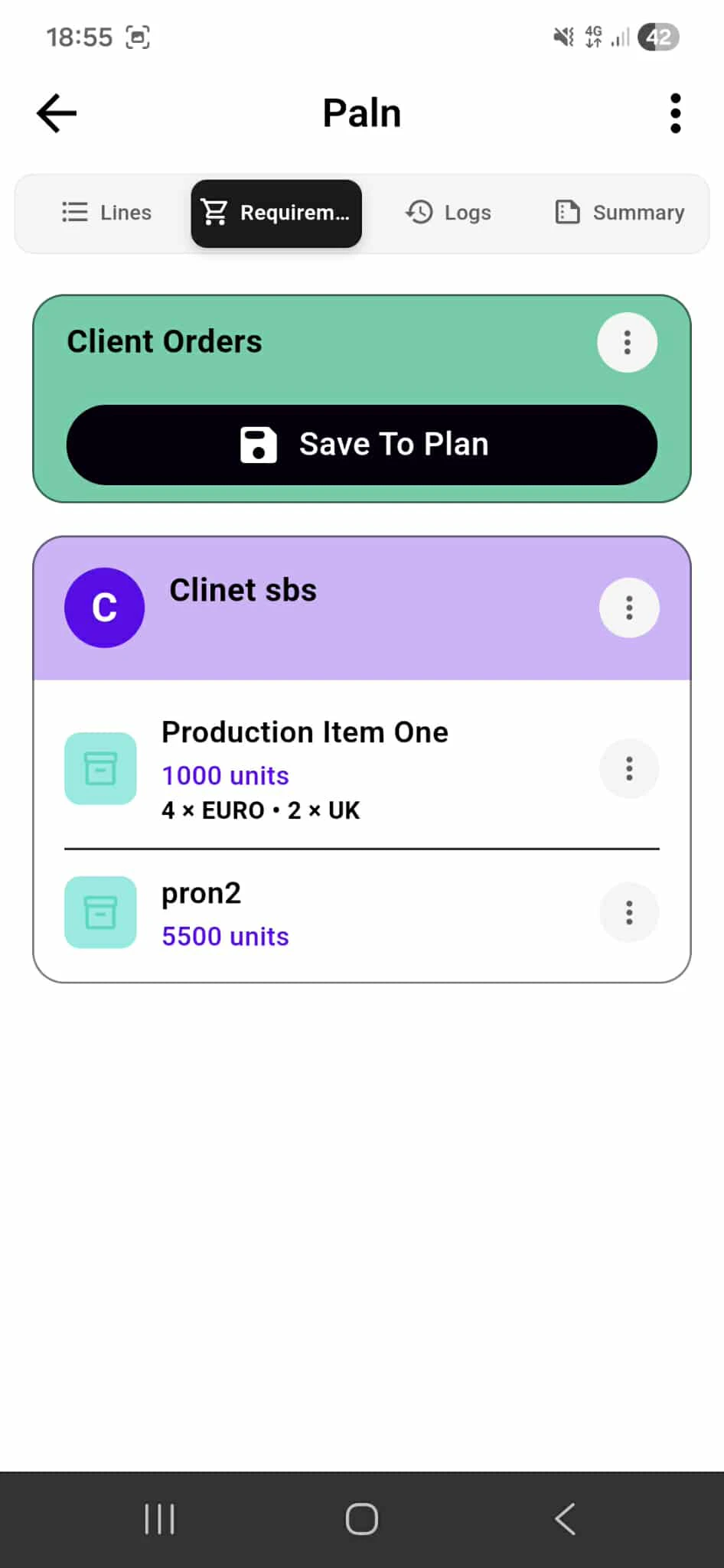
Connect client orders to your production plan. View each client's order with required items, quantities, and pallet breakdown (e.g., "4 x EURO + 2 x UK"). Tap "Save To Plan" to automatically convert client requirements into scheduled production runs across your production lines. This ensures all orders are accounted for in your manufacturing schedule.
Why This Integration Matters Order Visibility - See all client orders in one view.
Pallet Breakdown - Know exact pallet requirements per order.
Auto-Scheduling - Convert orders to production runs instantly.
Complete Accountability - Every order tracked and scheduled.
Seamless Integration - Orders sync with your production workflow.
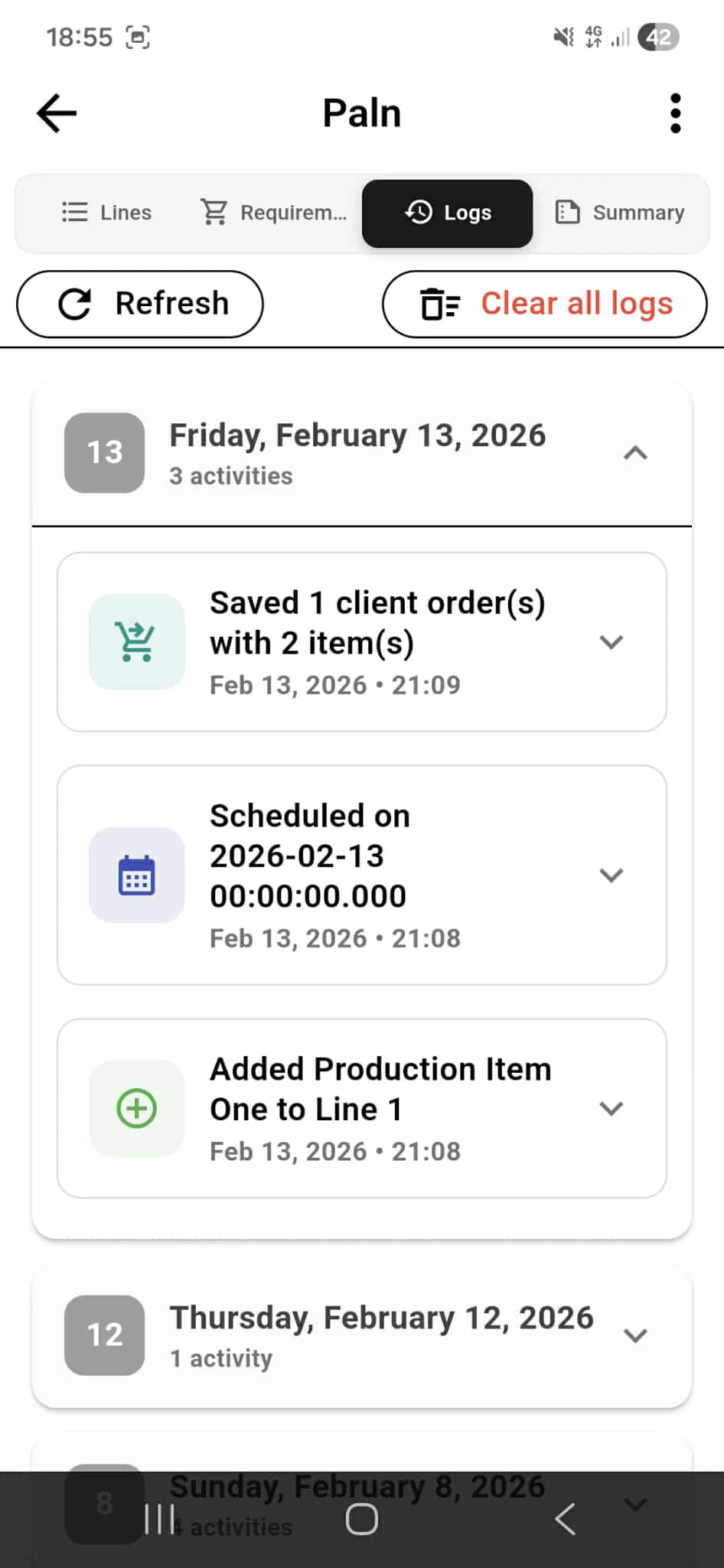
Track Production Action - Logs
The Logs tab records every action taken within your production plan. View activity grouped by date with timestamps. Each log entry shows what happened: "Saved 1 client order(s) with 2 item(s)", "Scheduled on 2026-02-13", "Added Production Item One to Line 1". Use Refresh to update logs or Clear all logs to reset the history. This complete audit trail ensures full visibility into your plan's evolution and helps troubleshoot production issues.
Why Logs Matter Complete History - Every action timestamped and recorded.
Grouped by Date - Organized chronologically for easy review.
Detailed Actions - See exactly what changed and when.
Troubleshooting - Trace back what happened to identify issues.
Accountability - Full audit trail of all production changes.
Your Complete Production Overview at a Glance
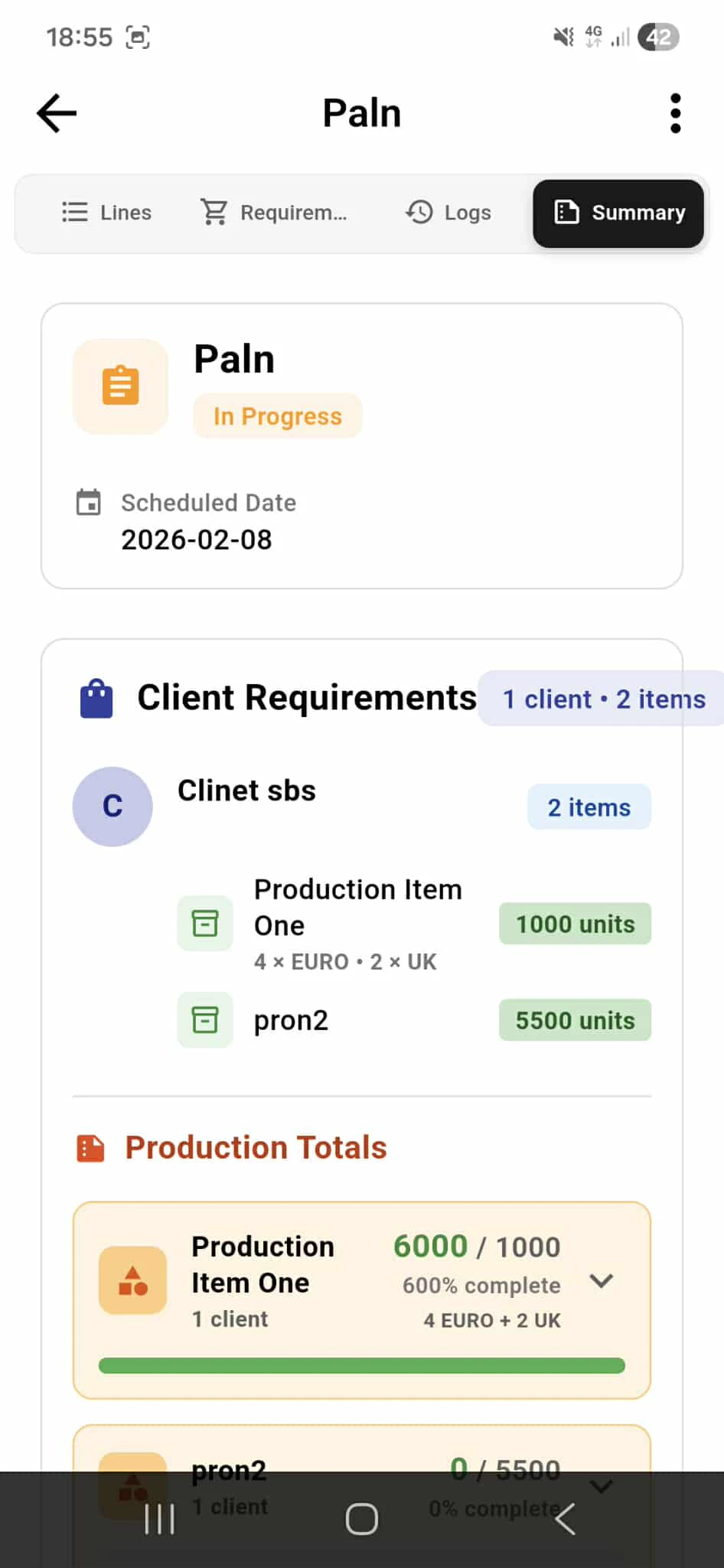
The Summary tab displays your entire plan at once. See the plan name and current status (In Progress). View scheduled date and client requirements with client names and item counts. The Production Totals section shows production items with quantities produced vs. planned (e.g., "6000 / 1000 - 600% complete"). View pallet breakdown per item and client assignments. This complete snapshot lets you instantly understand your plan's progress, client orders, and production status.
Why Summary Matters One-Screen Overview - See everything about your plan instantly.
Progress Visibility - Know completion percentages per item.
Client Mapping - See which clients are assigned to which items.
Pallet Breakdown - Shipping requirements visible at a glance.
Status Clarity - Plan progress and schedule date always visible.
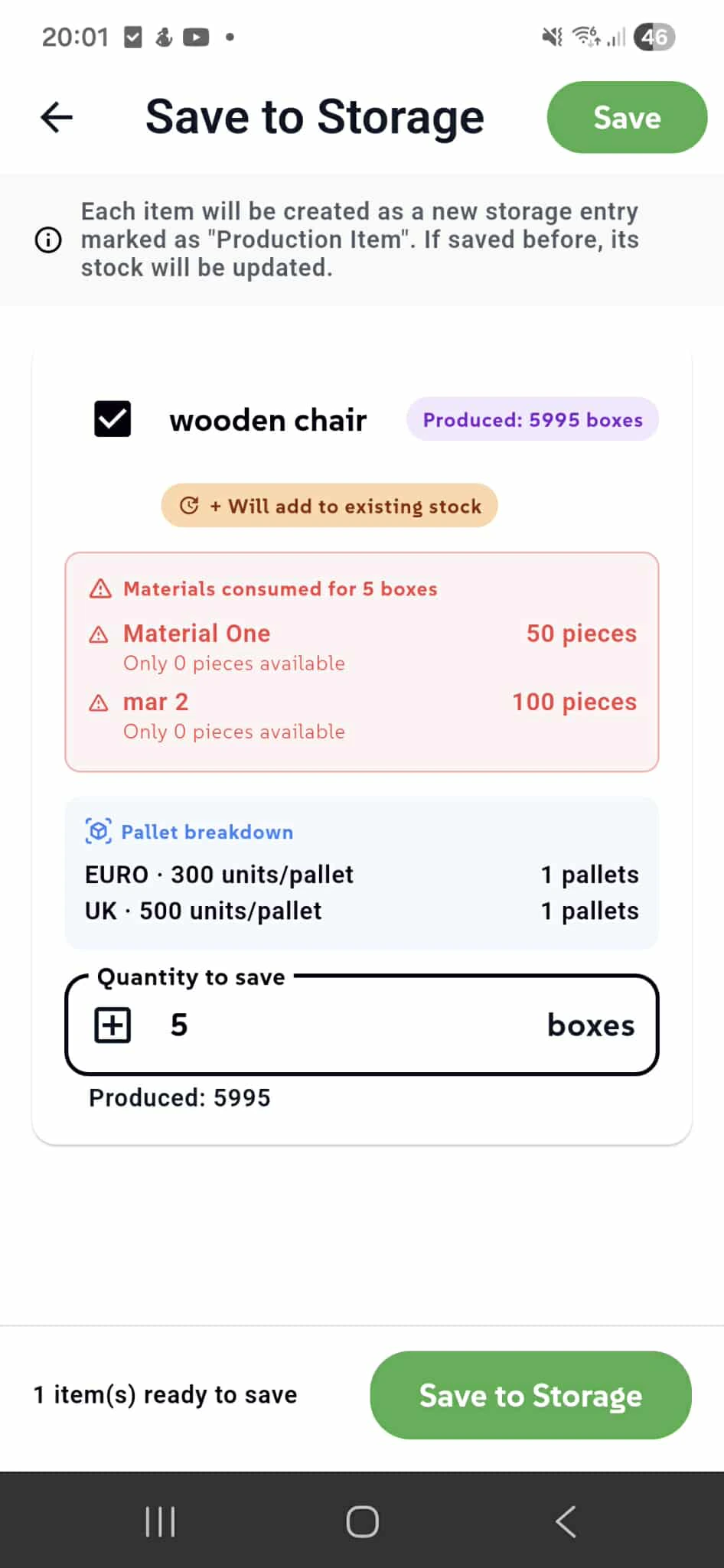
Save Finished Production to Storage Instantly
When production is complete, save finished products to your Storage Service. The "Save to Storage" screen shows what you're adding: product name, quantity produced, unit type. View material consumption warnings if stock is insufficient (e.g., "Material One: Only 0 pieces available"). Check pallet breakdown showing how items fit into pallets (e.g., "EURO - 300 units/pallet: 1 pallet"). Set the quantity to save and choose whether to add to existing stock or create a new storage entry. Production items are automatically marked as "Production Item" in Storage. Tap "Save to Storage" to finalize the transfer.
Why This Integration Matters Seamless Handoff - Production flows directly into inventory.
Stock Updates - Finished products instantly increase storage quantities.
Material Tracking - Consumption warnings prevent overselling.
Pallet Records - Shipping data carries through to fulfillment.
Complete Automation - No manual entry. Production to storage in one tap.
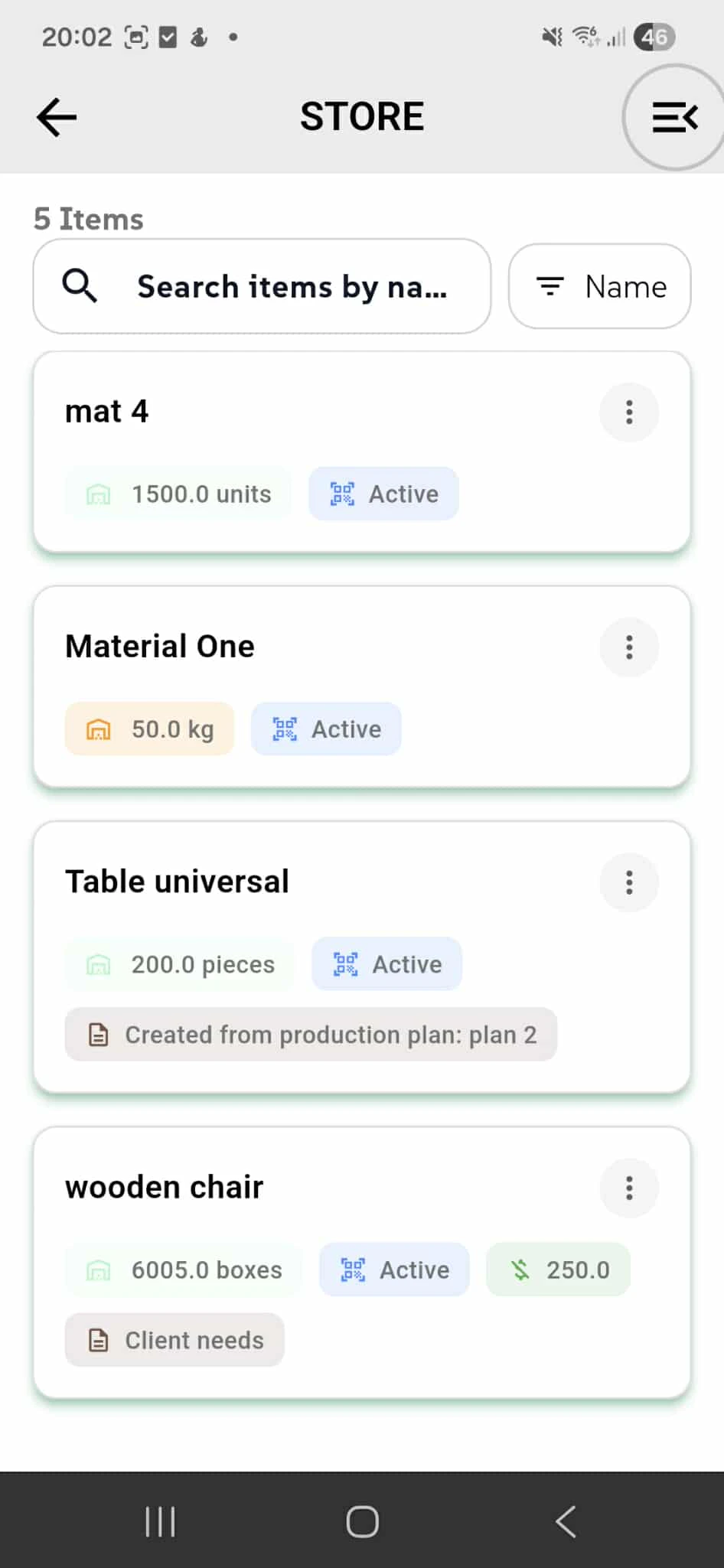
Your Production Inventory - Complete Stock Visibility
The Storage Service displays all your inventory items, including production-saved products. Each item shows quantity, unit type, status (Active), and origin (e.g., "Created from production plan: plan 2"). Items saved from production carry production context forward. Search by name to find items instantly. Items like "wooden chair" show 6005.0 boxes with price (250.0) and tags (e.g., "Client needs"). Items like "Table universal" display their production origin for complete traceability. Your entire inventory is organized in one place—raw materials, finished products, everything.
Why This Integration Matters Complete Traceability - Know which items came from which production plans.
Unified Inventory - Materials and finished products in one system.
Production-Backed - Every production-saved item carries context.
Search Ready - Find any item instantly by name.
Stock Visibility - All quantities and unit types visible at once.