Expense Tracker
The Expense Tracker service empowers you to monitor and manage your spending across multiple timeframes—daily, weekly, monthly, yearly, or completely custom periods that suit your business needs. Every expense is logged with full visibility through beautiful, intuitive data visualizations that help you understand your spending patterns at a glance. Whether you're an individual managing personal finances or a business keeping tabs on operational costs, this tool gives you the actionable insights you need. Privacy is paramount. All your financial data is stored securely on your local device using Hive, our local database solution integrated into the Flutter app. Your sensitive expense information never leaves your device—no cloud uploads, no third-party access, no AI data scraping, no analytics tracking. Not even AI has access to your data. You maintain 100% control and complete confidentiality over data that matters most to your business. The Expense Tracker is your personal financial command center with absolute privacy protection. Control your cash flow. Own your data. Yours alone.
Create a New Expense Tracker
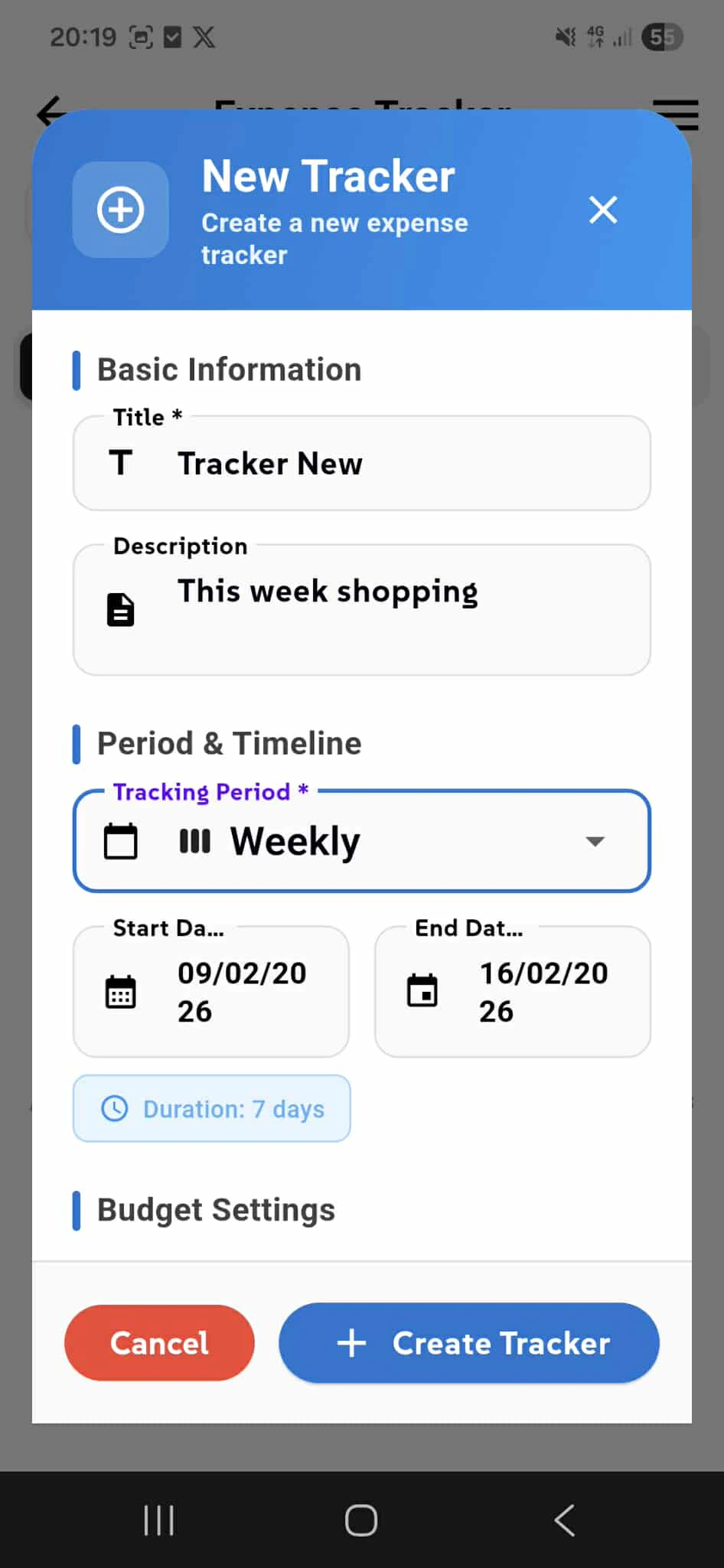
Create a new expense tracker tailored to your specific needs. Define a title and description to organize your tracking, then choose your tracking period—weekly, monthly, yearly, or custom date ranges to match your business cycles. Set a budget limit (optional) to establish spending guardrails and receive alerts when you're approaching or exceeding your threshold. Every tracker operates independently on your device, keeping all financial data secure and private. Whether you're tracking project expenses, departmental budgets, personal spending, or business categories, each tracker gives you dedicated insights into that specific cost center.Expense Tracker
View, edit, and manage all your expense trackers
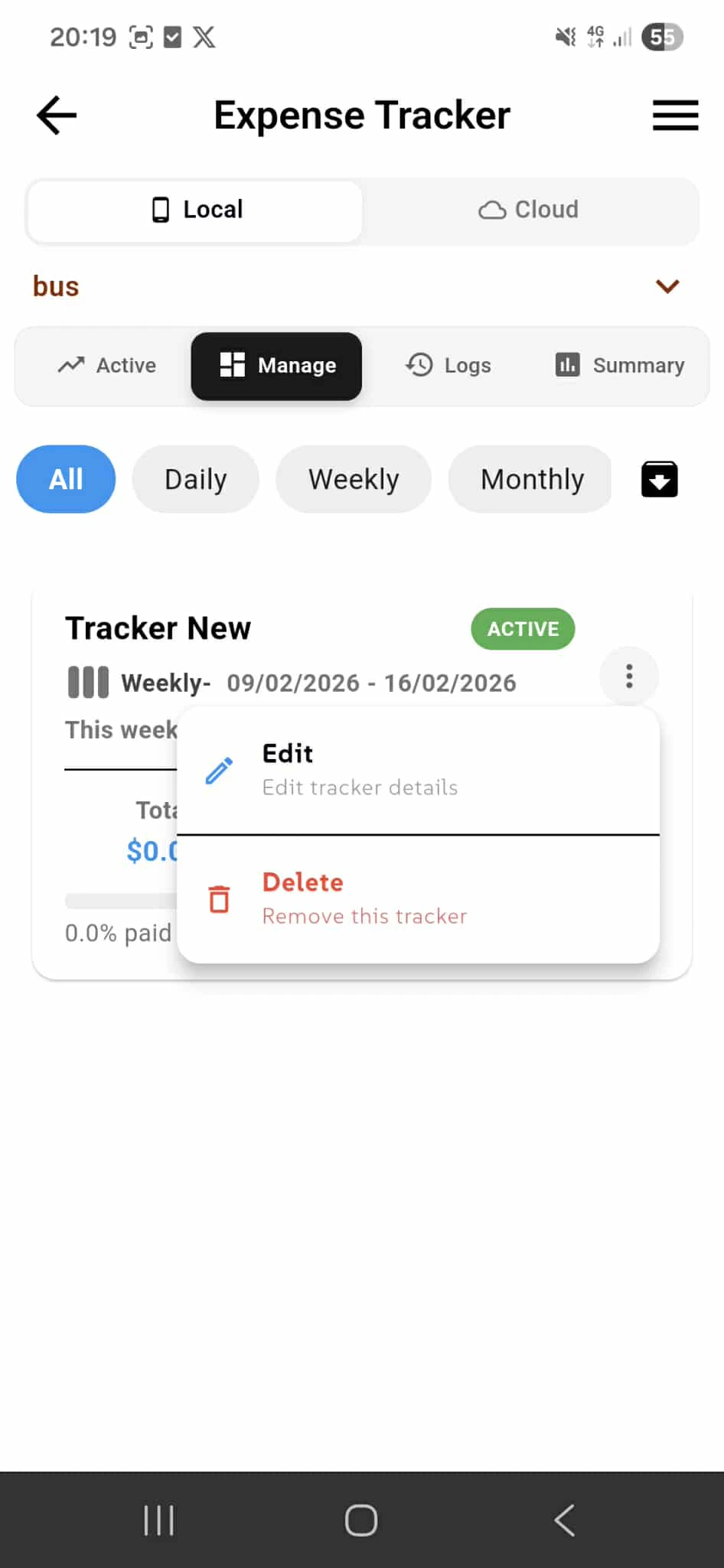
The Manage tab gives you complete control over all your active trackers. View each tracker's status, tracking period, spending totals, and budget progress at a glance. Edit any tracker to update its title, description, period settings, or budget limit. Delete trackers you no longer need—all data is removed from your device. Every tracker displays its current spending total, budget limit (if set), and completion percentage so you can monitor your spending in real time. Filter by timeframe—All, Daily, Weekly, Monthly—to focus on the trackers most relevant to your current period. Click any tracker to open it and view detailed expenses, logs, and spending analytics for that specific tracker. All management is done locally on your device with no cloud syncing or external access.
Tracker Details & Expense Overview
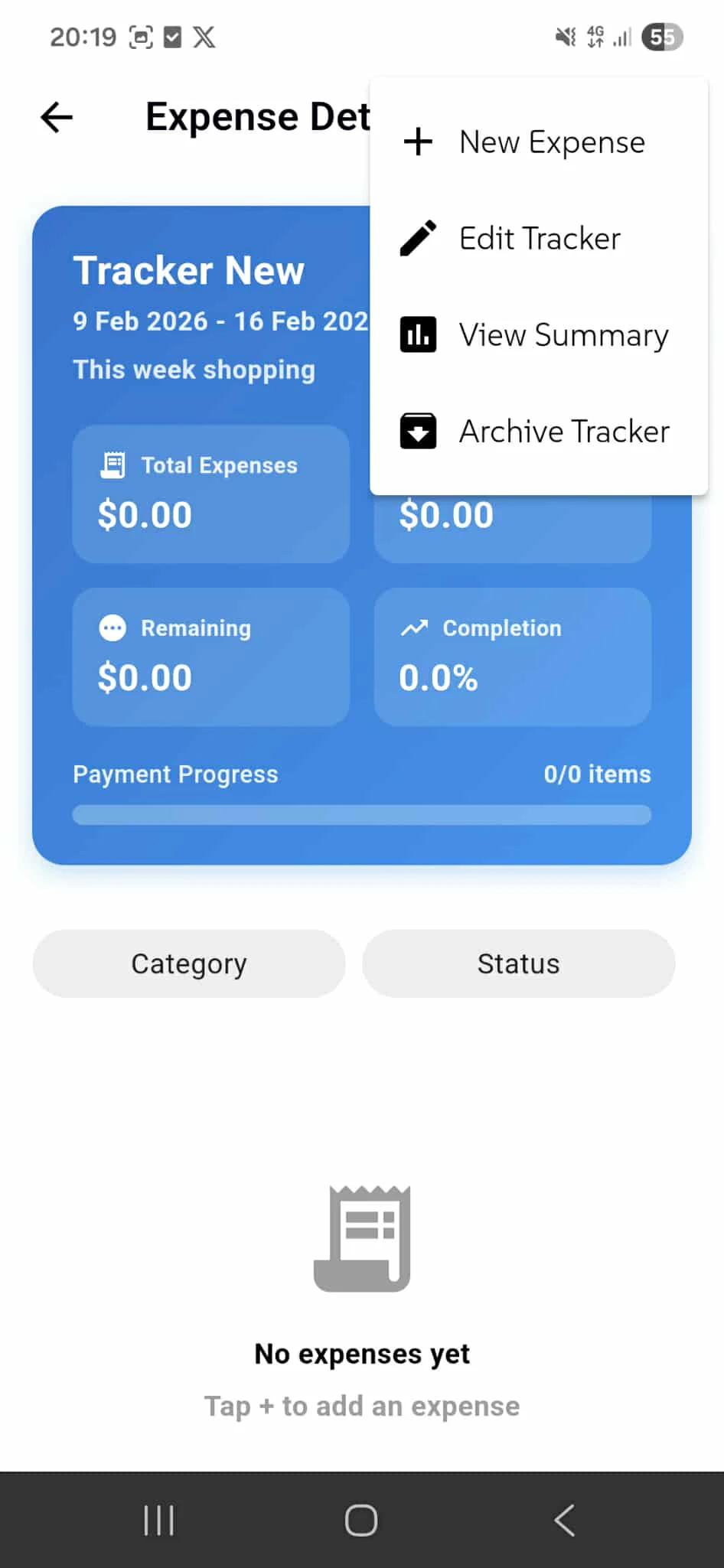
Inside each tracker, you get a complete expense overview with real-time visual data display. The blue summary card shows your total expenses, remaining budget, and completion percentage at a glance, giving you instant insight into your spending status. From this screen, you can add new expenses directly to the tracker, edit the tracker settings (name, period, budget), view a detailed summary with analytics, or archive the tracker when it's complete. Filter expenses by Category or Status to focus on specific spending areas. The expense list below shows every entry added to this tracker. When the tracker is empty, you'll see a prompt to tap + to add an expense. Every action is performed locally on your device—no syncing, no cloud uploads. Your expense data stays completely private.
Add a New Expense
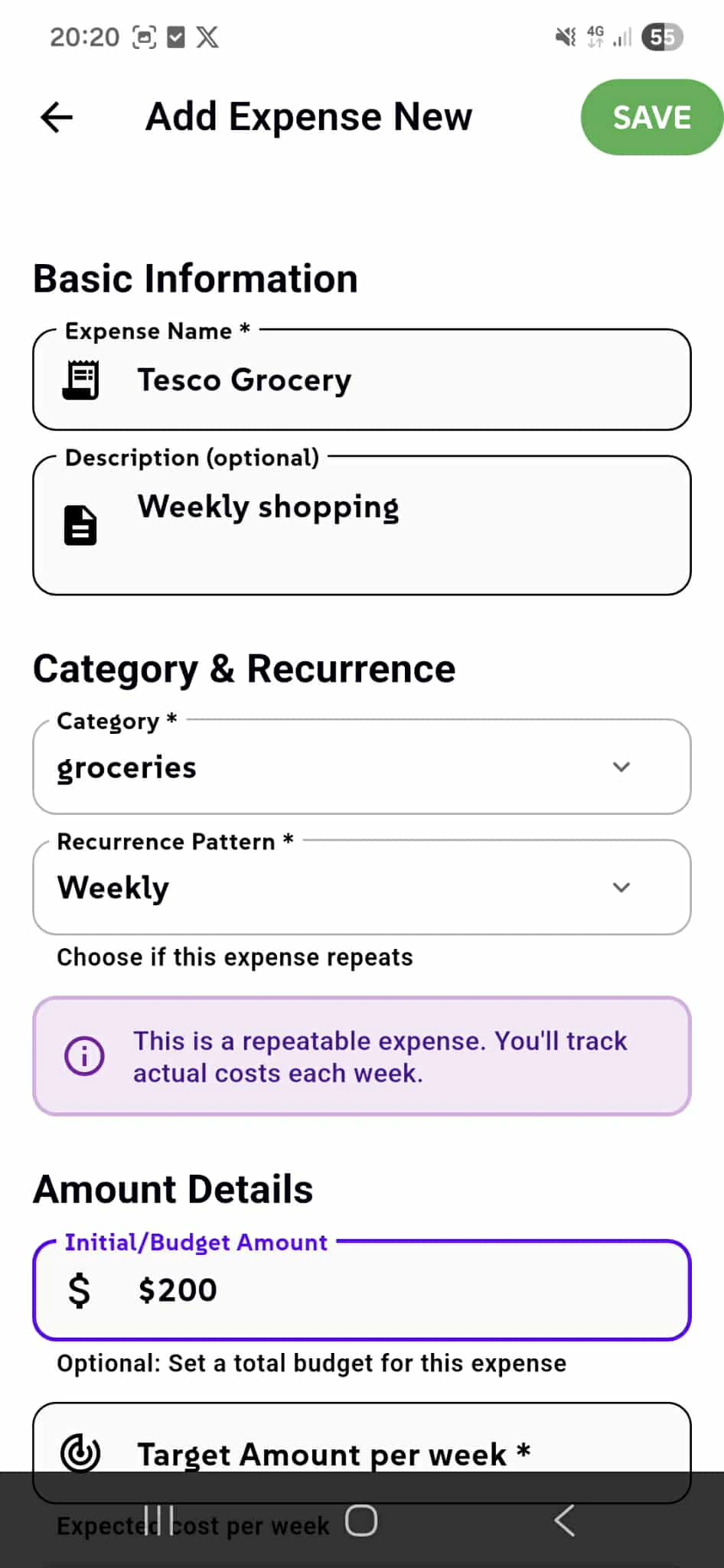
Create detailed expense entries for your tracker with flexible configuration options. Start with a clear expense name (required) and optional description to capture context. Categorize your expenses by type (groceries, utilities, supplies, etc.) and set up recurring patterns if this is a regular expense—daily, weekly, monthly, or custom frequencies. The app will track actual costs each week while monitoring your weekly spending target. Set an initial budget amount (optional) to establish a spending cap for this specific expense category. Then define your target amount per week to keep recurring expenses on budget across multiple periods. All expense data is stored locally on your device with complete privacy—no tracking, no analytics, no external storage.
View and filter all expenses with detailed progress tracking
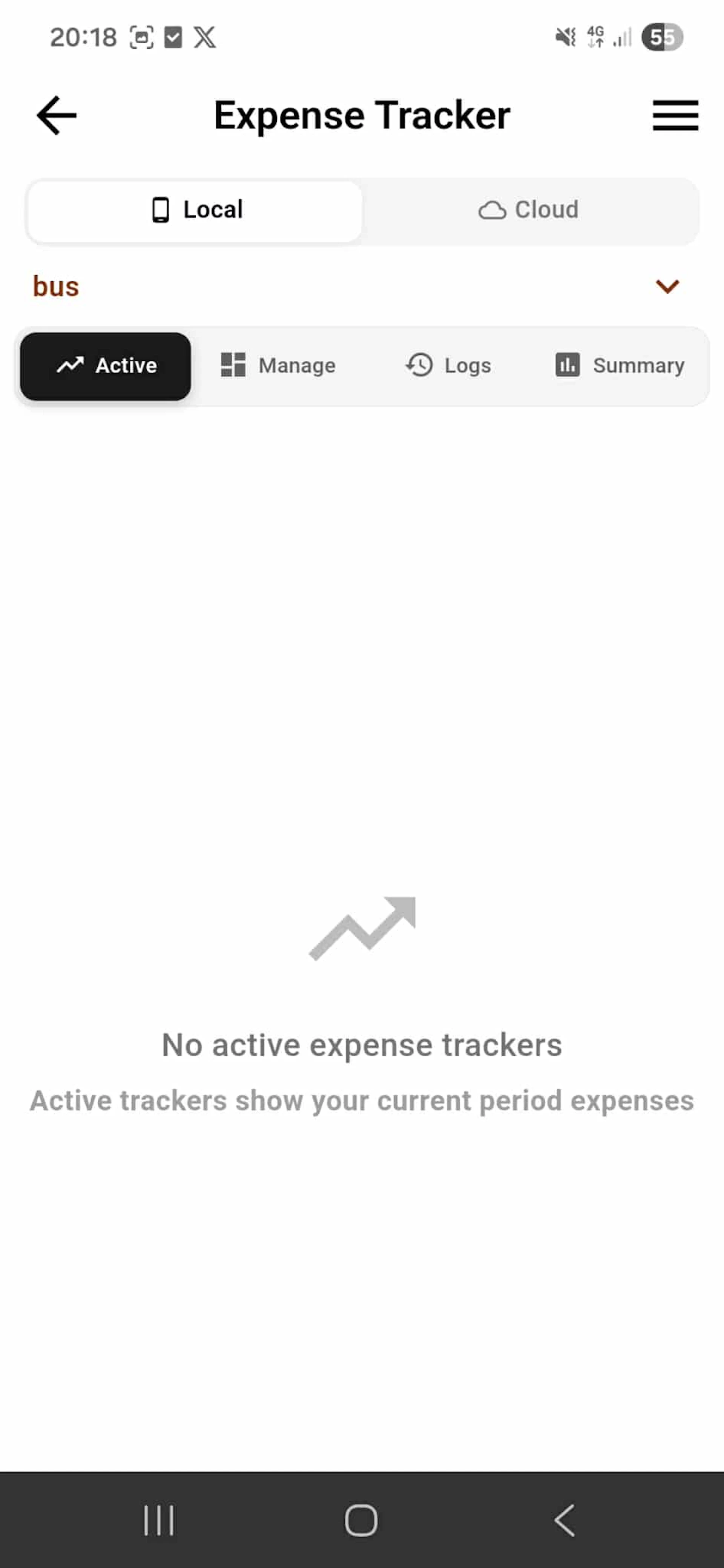
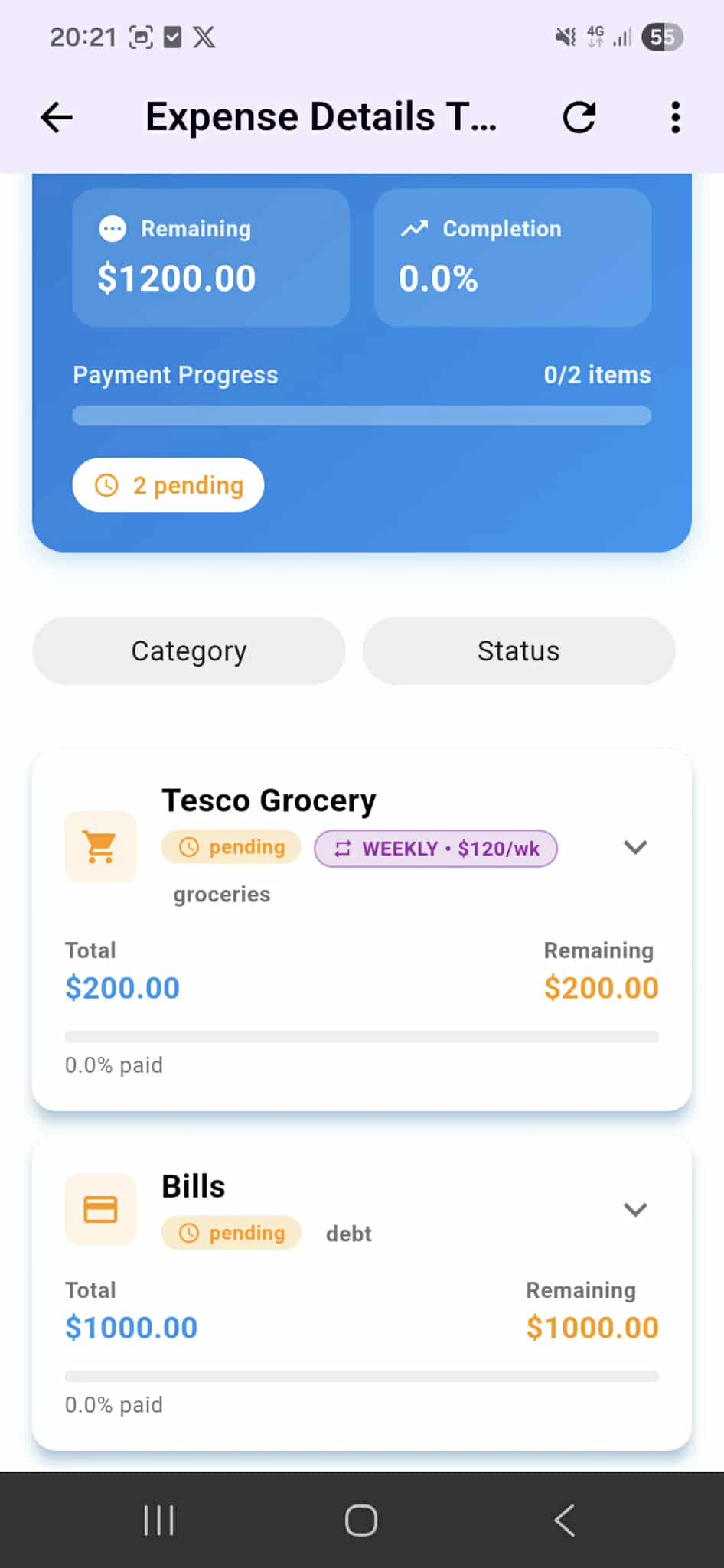
The Active tab shows a comprehensive list of all expenses you've added to this tracker. Each expense appears as an expandable card displaying the expense name, category, status, recurrence pattern, and financial breakdown. Every expense card shows: total amount spent for this expense, remaining budget before hitting the limit, and paid percentage showing how much of the budget is consumed, along with status indicator (Pending, Paid, Partially Paid). Click any expense card to expand it and see detailed information, make payments, or access edit and delete options. Filter by Category or Status to focus on specific spending areas—view only groceries, bills, or only pending items. When you expand an expense, the blue summary section at the top updates to show tracker-level totals including remaining budget, completion percentage, and payment progress across all expenses. All expense management is performed locally on your device with complete privacy—no cloud syncing, no external access, no data sharing.
Expense Details & Payment Tracking
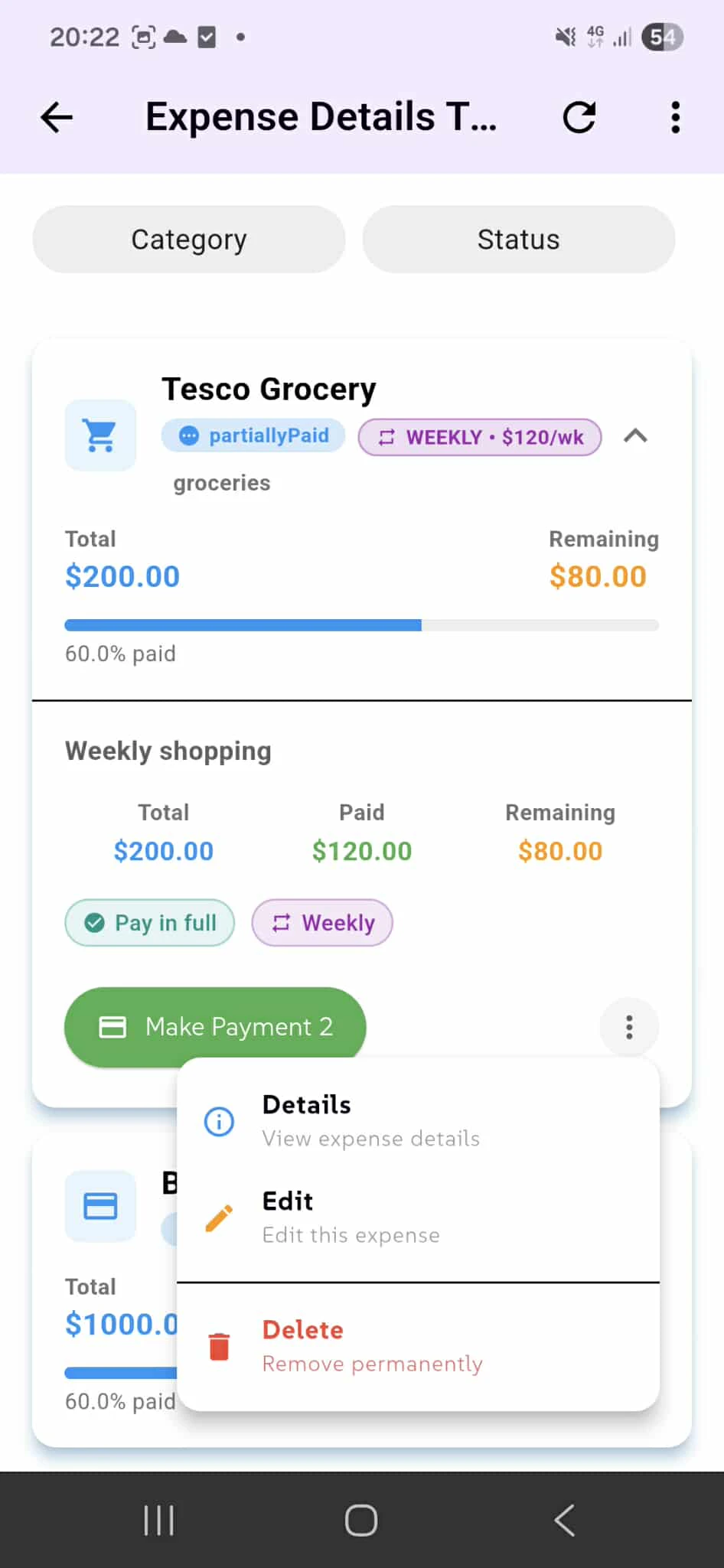
When you click on any expense in your tracker, the Expense Details modal expands to show complete information and payment options. View the total amount, amount paid to date, and remaining balance at a glance. If the expense is not fully paid, a green "Make Payment" button appears, allowing you to add a payment and update the expense status. Track weekly or total spending depending on your recurrence pattern. From this view, you can: view complete expense details including category, recurrence, and budget information, make payments to move the expense toward completion, edit the expense to update name, amount, category, or settings, and delete the expense permanently from your tracker. All payment tracking is stored locally on your device with complete privacy—no external payment processing or data sharing.
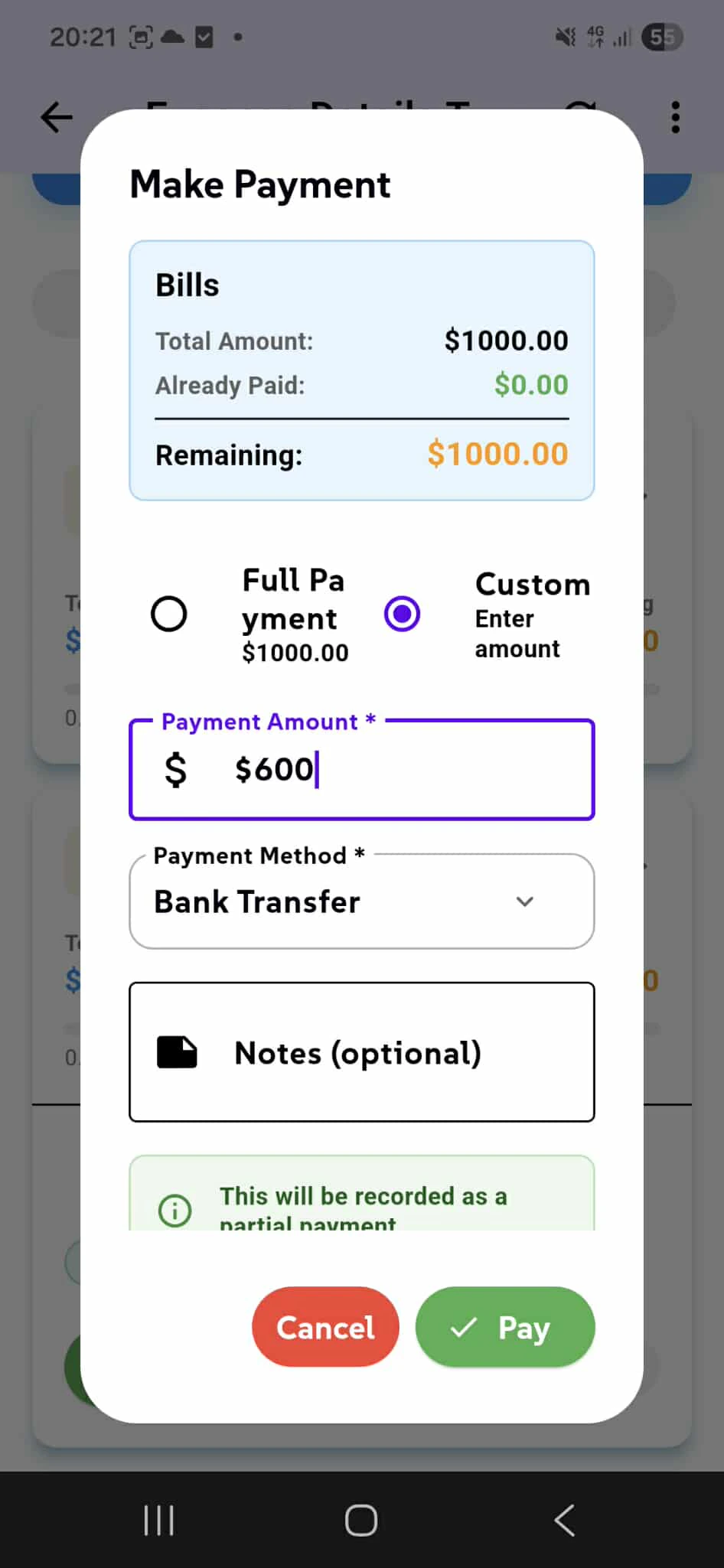
Make Payment
Record payments toward any expense with flexible payment options. See your total amount, already paid, and remaining balance at a glance. Choose to pay the full remaining amount or enter a custom payment amount. Select your payment method (Bank Transfer, Cash, Card, etc.) and optionally add notes to track payment details. The app records this as a partial payment, updating your remaining balance and completion percentage. All payments are logged locally on your device with complete privacy—no payment processing, no external records.
Your expense data updates instantly
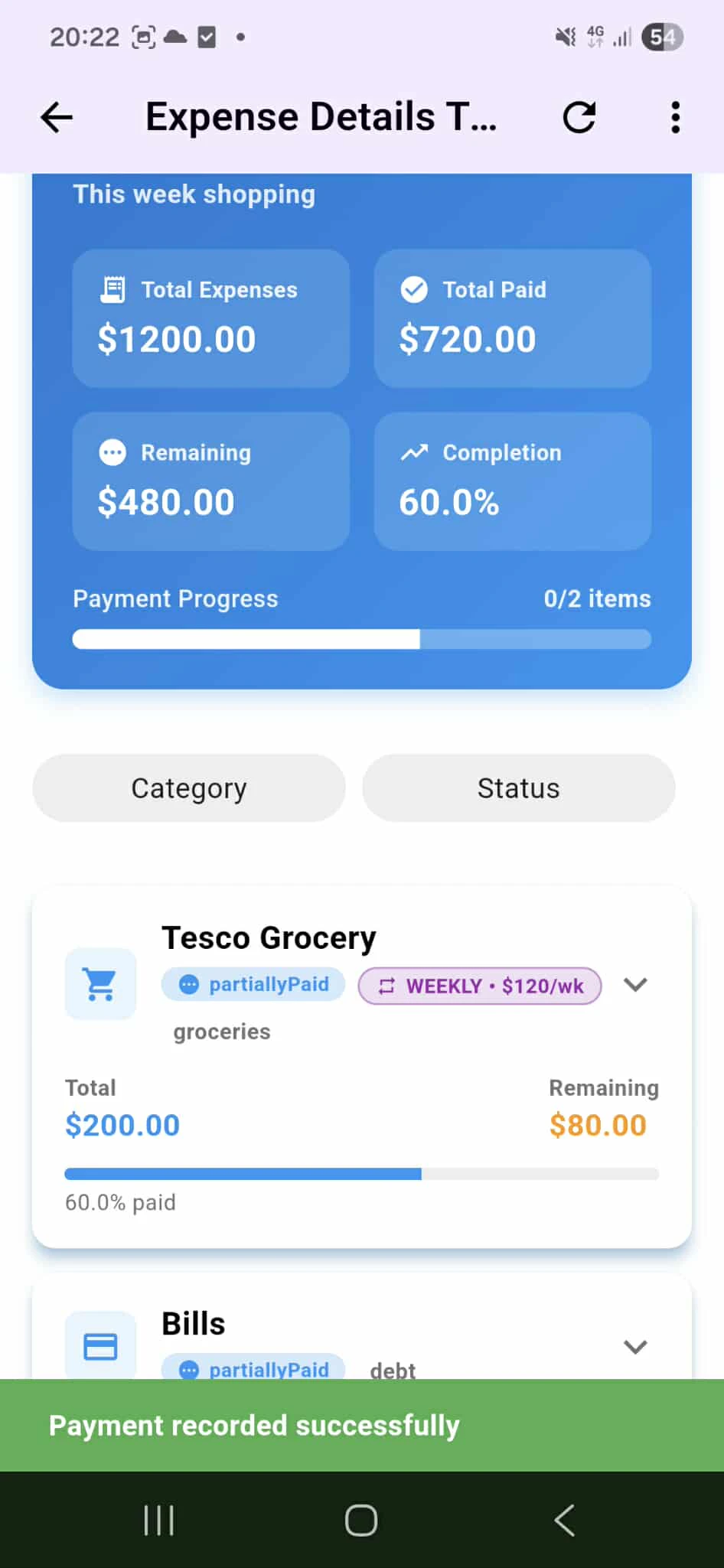
After recording a payment, the app displays a green success message confirming "Payment recorded successfully." The expense metrics update automatically in real time—your total paid amount, remaining balance, and completion percentage refresh instantly to reflect the new payment. See your visual progress change immediately: the blue summary card shows updated total expenses, total paid, remaining budget, and completion percentage. The payment progress bar updates to show how much of the tracker is complete. All changes are saved locally on your device with no delay or external syncing.
Activity Logs
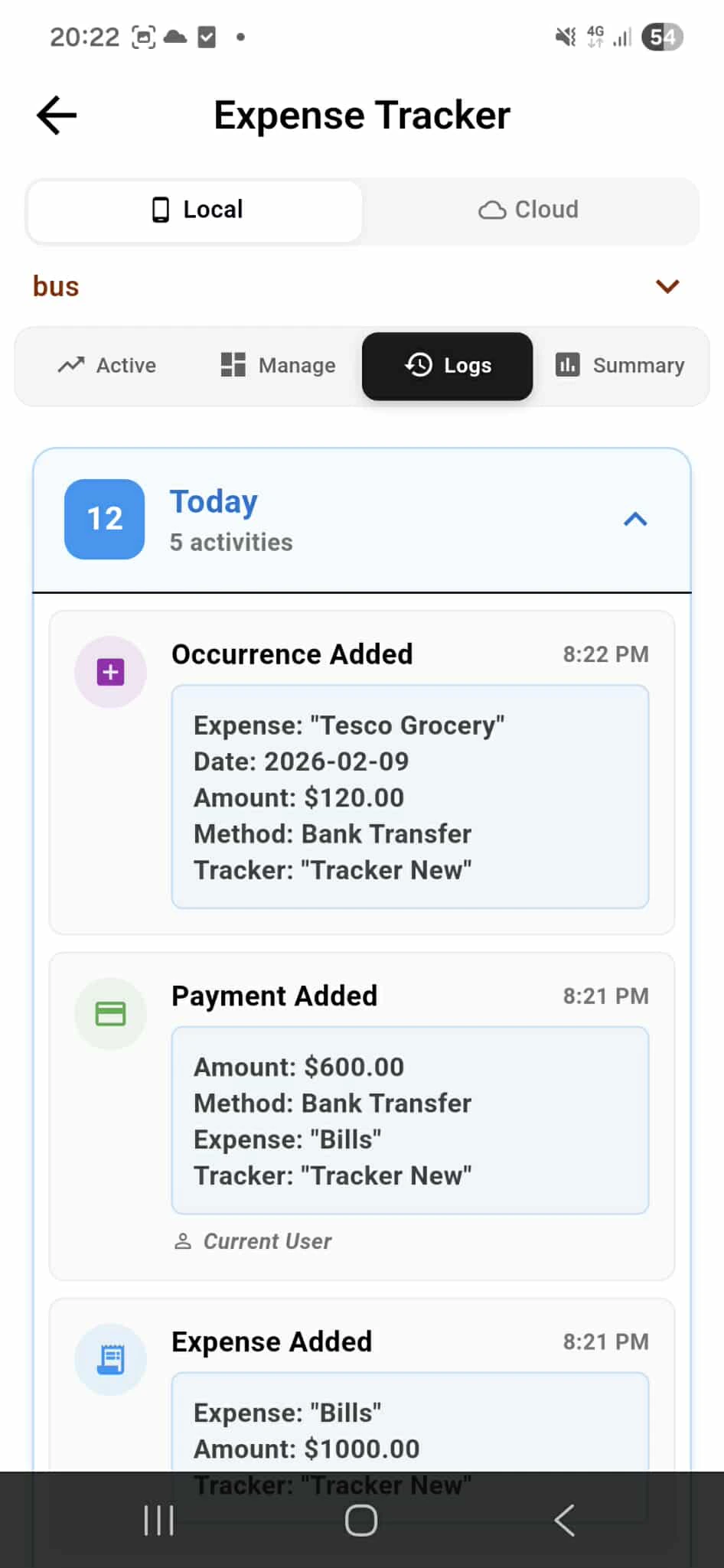
The Logs tab displays a complete chronological history of all activities and transactions in your tracker. Every action is logged and timestamped—from expense additions to payments recorded. Organize by date with collapsible daily sections showing "Today", "Yesterday", and previous dates with activity counts. Each day shows how many activities occurred (e.g., "3 activities"). Expand any day to see detailed logs including: Occurrence Added (when expenses are created), Payment Added (when payments are recorded), Expense Added (new expenses logged), Expense Modified (changes to existing expenses), and Expense Deleted (removed expenses). Each log entry displays: action type with icon, timestamp, complete details (expense name, amount, date, method, tracker), and user information showing who performed the action. All activity is stored locally on your device with complete audit trail for reference.
Detailed breakdown of your trackers with visual analytics
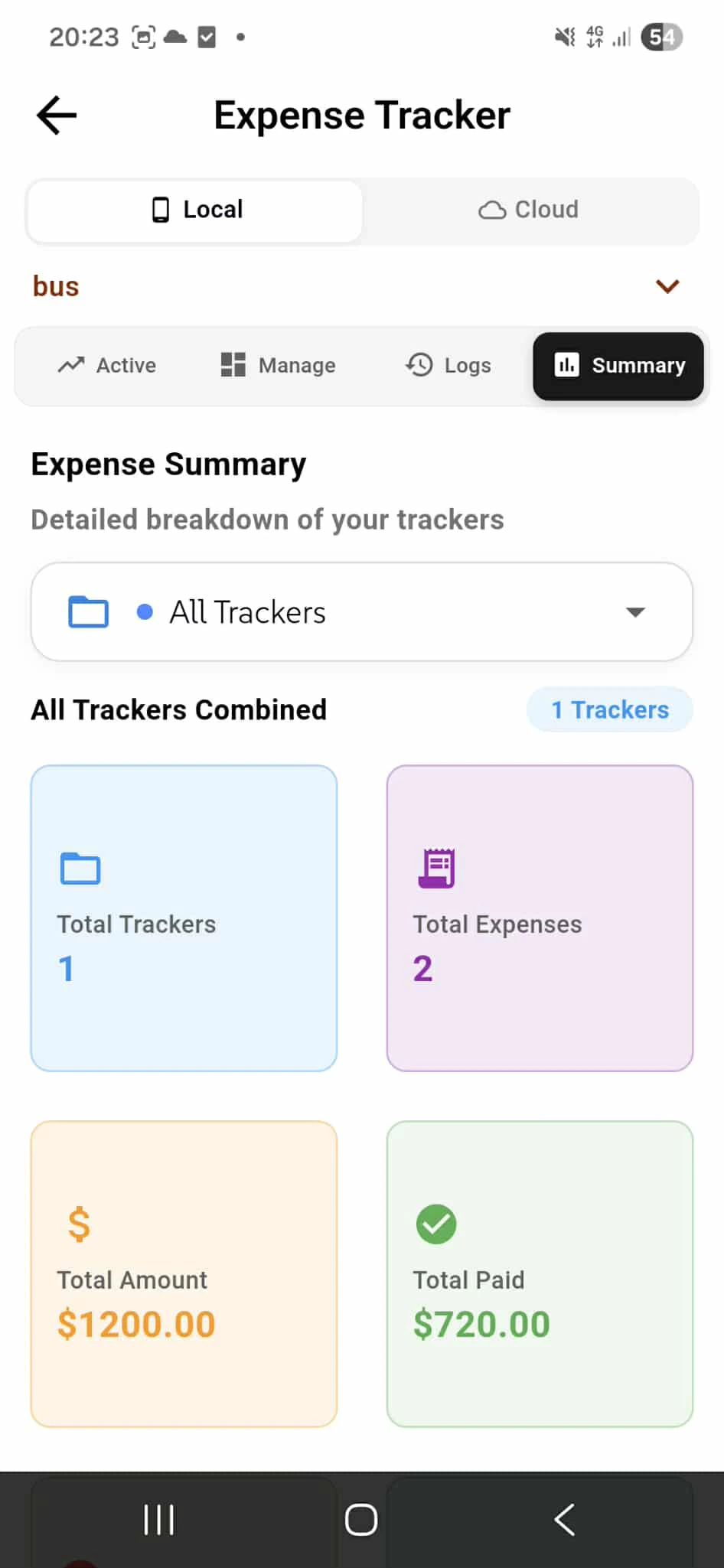
The Summary tab provides a complete analytical overview of all your expense trackers. Select "All Trackers" to see combined metrics across everything, or choose individual trackers to dive into specific spending analysis. View visual data cards showing: Total Trackers (how many active trackers you have), Total Expenses (number of expense entries across trackers), Total Amount (complete spending across all expenses), and Total Paid (total payments made to date). Filter by tracker to see individual performance metrics. Each tracker shows its own breakdown of expenses, payments, remaining budget, and completion percentage. All data is displayed locally on your device with no external analytics or data sharing—your spending patterns stay completely private.