Employee Management
The Employee Management Service provides a comprehensive system for managing employee information and tracking task assignments within your business. This service stores essential employee data including name, surname, email, and role, making it easy to organize and access your team information.
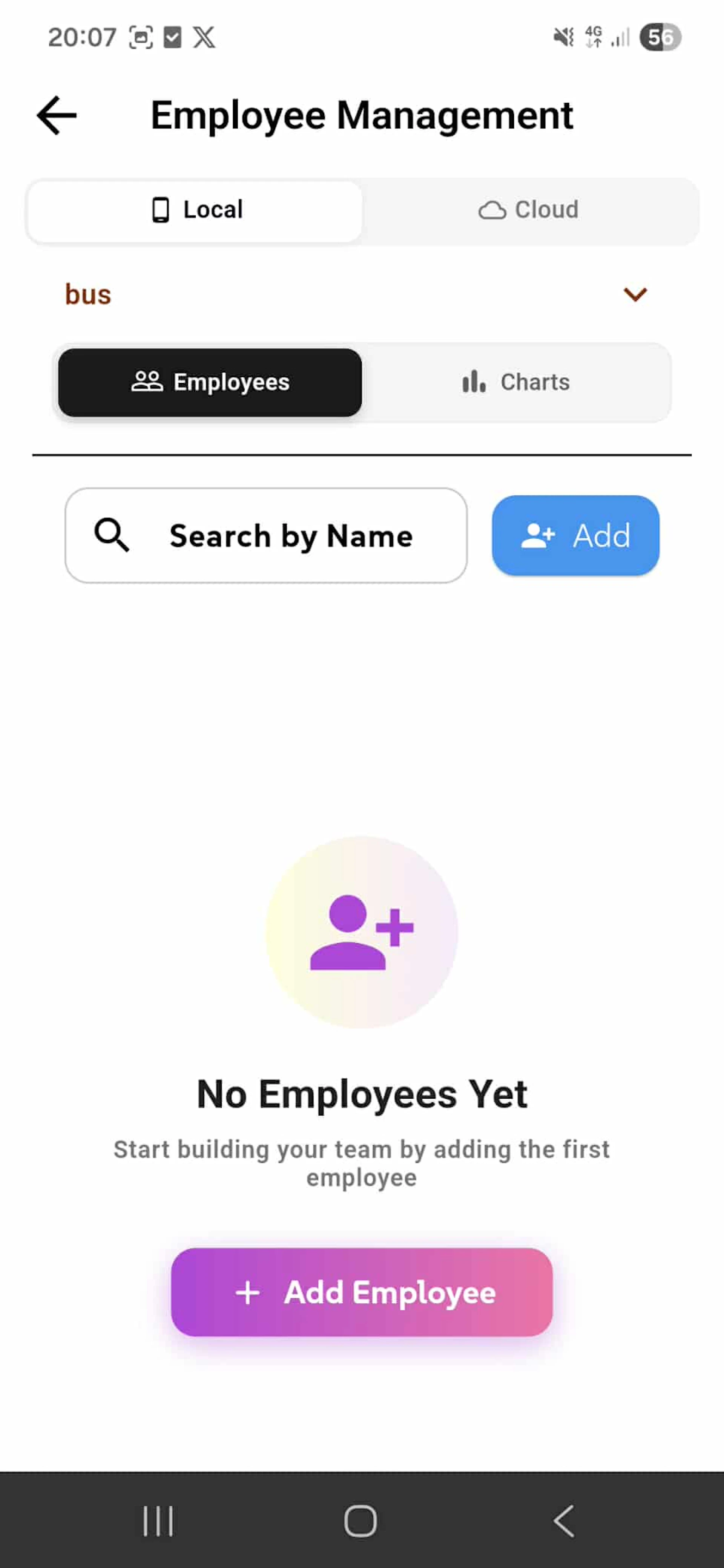
The main screen displays employees stored locally on the device or synced to the cloud, with a business selector dropdown (e.g., "Bus 1") allowing users to view employees for specific businesses. The "Search by Name" field enables quick filtering of the employee list, while the "Add" button provides instant access to create new employee profiles.
The "Local Employees" section lists all team members as cards, each showing the employee name (e.g., "Employee One", "Employee Two") with a colored avatar and an "Active" status badge. Each card is tappable to view detailed employee information and manage their profile.
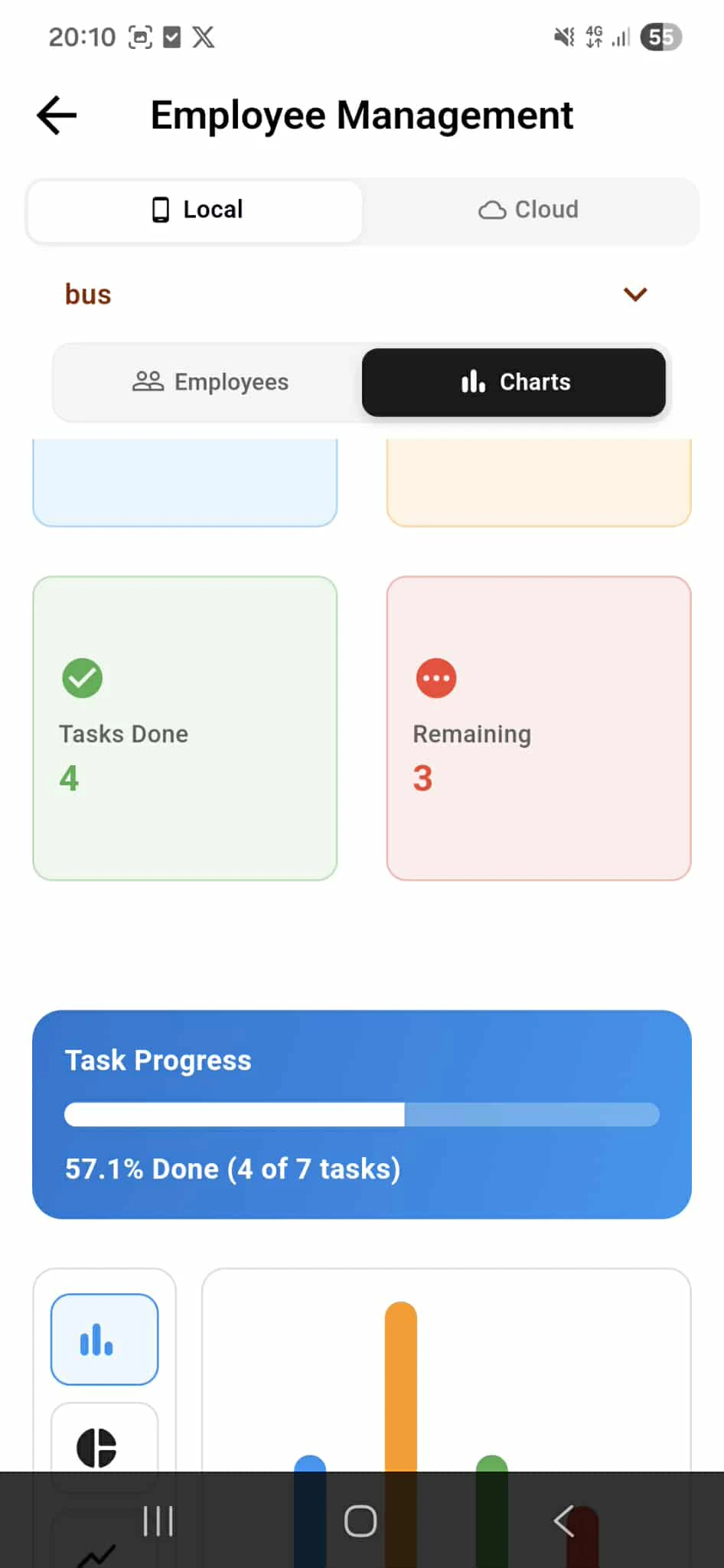
Below the employee list, an interactive chart dashboard provides visual insights into task management across the team. The blue bar represents the total number of employees, while three colored indicators show task status: orange for tasks to do, green for completed tasks, and red for incomplete/overdue tasks. This visual display allows managers to quickly assess overall team productivity and task completion rates at a glance.
Users can assign tasks to individual employees and update their status accordingly, creating a complete employee and task management solution within the BusiTools application.
Employee Details & Task Management
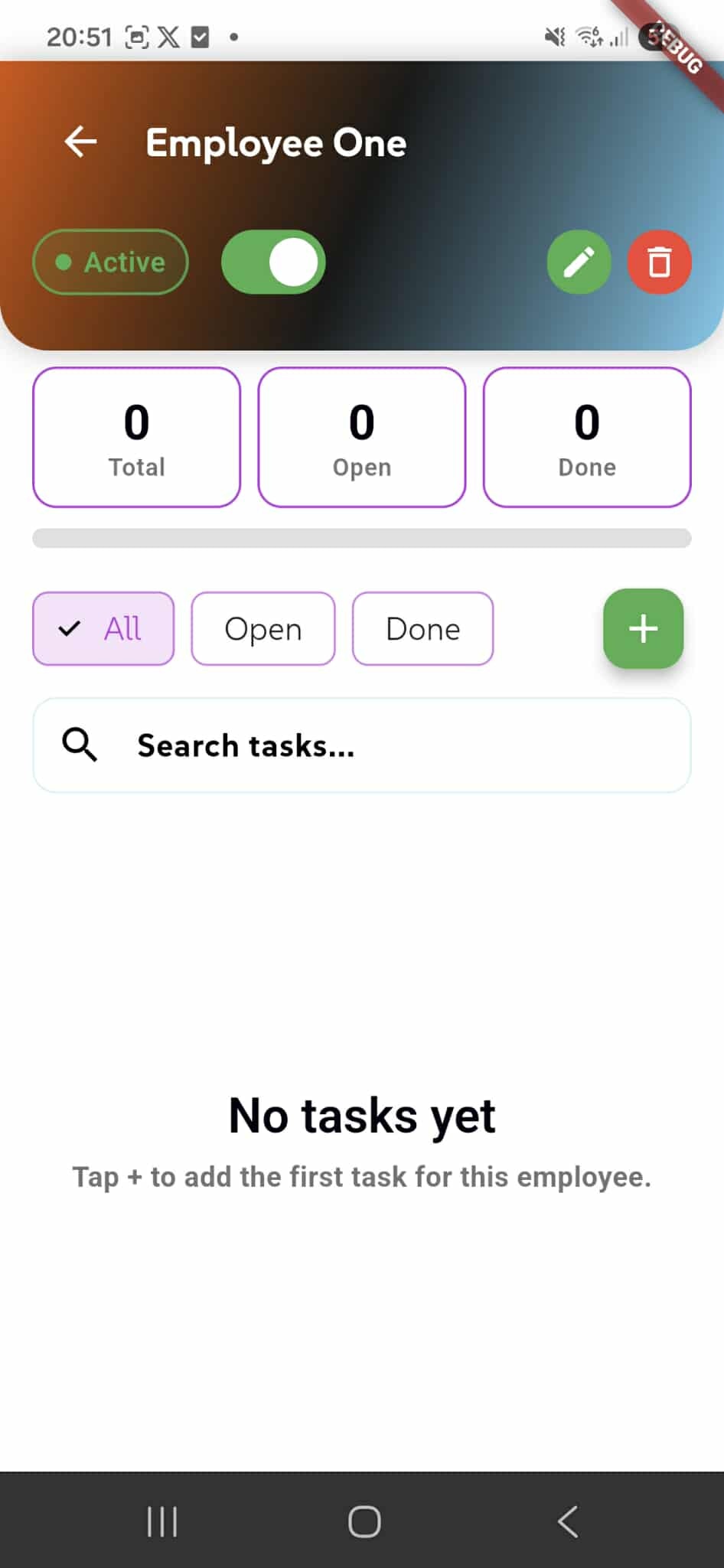
When selecting an employee from the main list, users are taken to the Employee Details screen displaying comprehensive information and task management for that specific team member (e.g., "Employee One").
The header shows the employee name with an "Active" status badge and toggle switch to quickly change their active/inactive status. Quick action buttons provide access to edit employee details (pencil icon) or delete the employee (trash icon) from the system.
The task statistics dashboard displays three key metrics in card format: "Total" shows the cumulative number of all tasks ever assigned to this employee (including completed and deleted tasks), "Open" displays currently active tasks awaiting completion, and "Done" shows successfully completed tasks. These counters update in real-time as tasks are created, completed, or removed.
Below the statistics, task filter tabs allow users to view "All" tasks, filter by "Open" tasks only, or show only "Done" tasks, making it easy to focus on specific task statuses. The green "+" button enables quick creation of new tasks for this employee.
The "Search tasks..." field provides instant filtering of the task list by keyword. When no tasks have been assigned yet, a friendly empty state message displays "No tasks yet" with the prompt "Tap + to add the first task for this employee," guiding users to create their first task assignment.
Create New Task
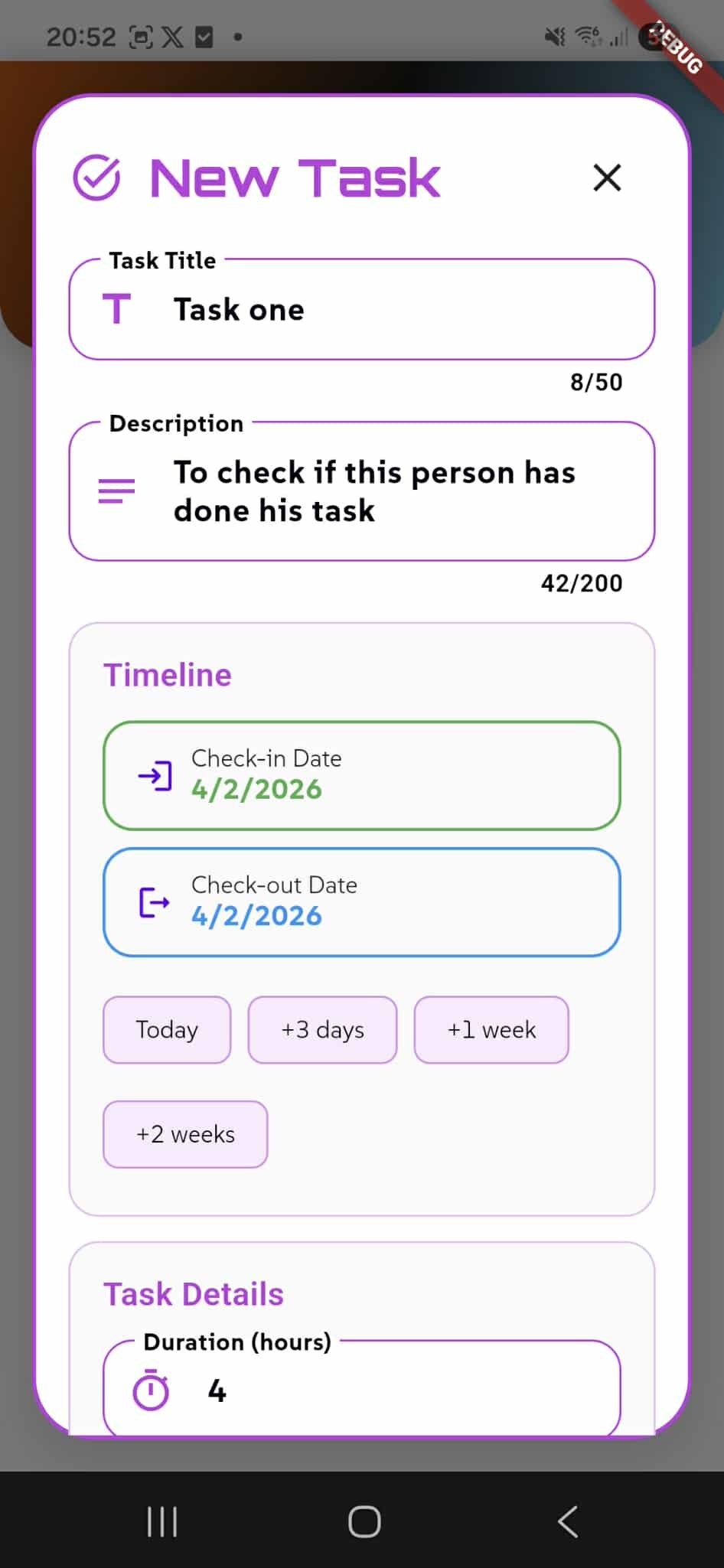
When clicking the "+" button, users can assign a new task to the selected employee through the "New Task" modal dialog. The form features a clean, organized layout with clear sections for all task information.
Required fields include the "Task Title" (e.g., "Task one") with a 50-character limit, and a "Description" field (e.g., "To check if this person has done his task") with a 200-character limit. Both fields display real-time character counts to help users stay within limits.
The "Timeline" section provides flexible date selection options. Users can set a "Check-in Date" (when the task begins) and a "Check-out Date" (when the task should be completed), both displayed in a clear format (e.g., "4/2/2026"). For convenience, quick-select buttons allow users to set deadlines relative to today: "Today", "+3 days", "+1 week", and "+2 weeks", eliminating the need for manual date entry for common timeframes.
The "Task Details" section includes a "Duration (hours)" field where users can specify the estimated time needed to complete the task (e.g., "4" hours). This helps with workload planning and time management.
All timeline and duration fields are optional, allowing users to create simple task assignments when detailed scheduling isn't necessary. The modal includes a close button (X) in the top-right corner to cancel task creation and return to the employee details screen.
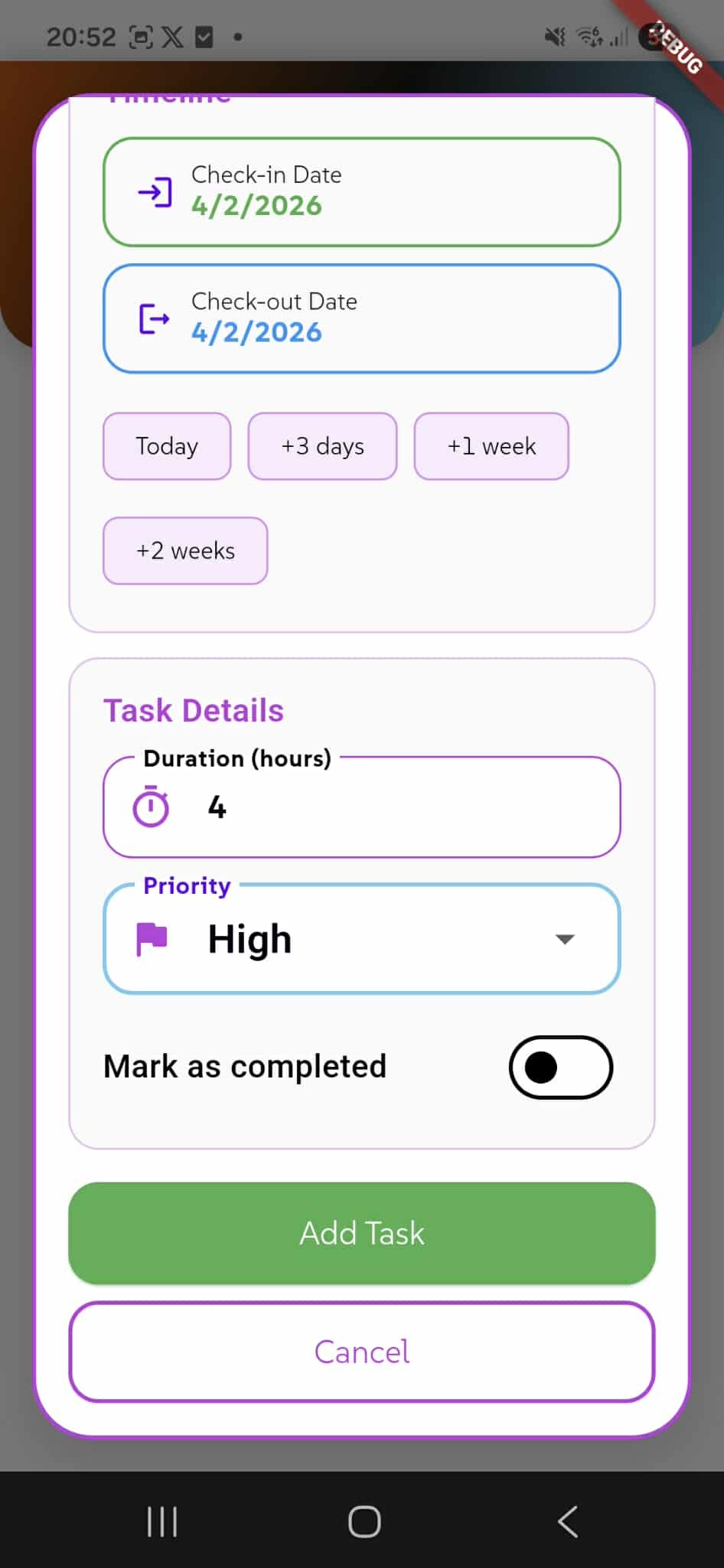
Create New Task
After filling in the required Task Title and Description fields, users can complete the task setup with additional optional details before saving.
The "Task Details" section expands to show the "Priority" dropdown, allowing users to set the task urgency level (e.g., "High", Medium, or Low). This helps employees understand which tasks require immediate attention and assists managers in workload prioritization.
A convenient "Mark as completed" toggle switch is available at the bottom of the form. This allows users to create tasks that are already finished - useful when recording historical tasks or documenting completed work retroactively for tracking purposes.
Once all desired information is entered, the prominent green "Add Task" button creates and saves the task to the employee's profile. The task will immediately appear in their task list and update the statistics counters (Total, Open, Done) accordingly.
If users decide not to create the task, the "Cancel" button dismisses the modal and returns to the employee details screen without saving any changes. All timeline features remain available, including the Check-in/Check-out dates and quick-select buttons for flexible deadline setting.
Task List with Swipe Gestures
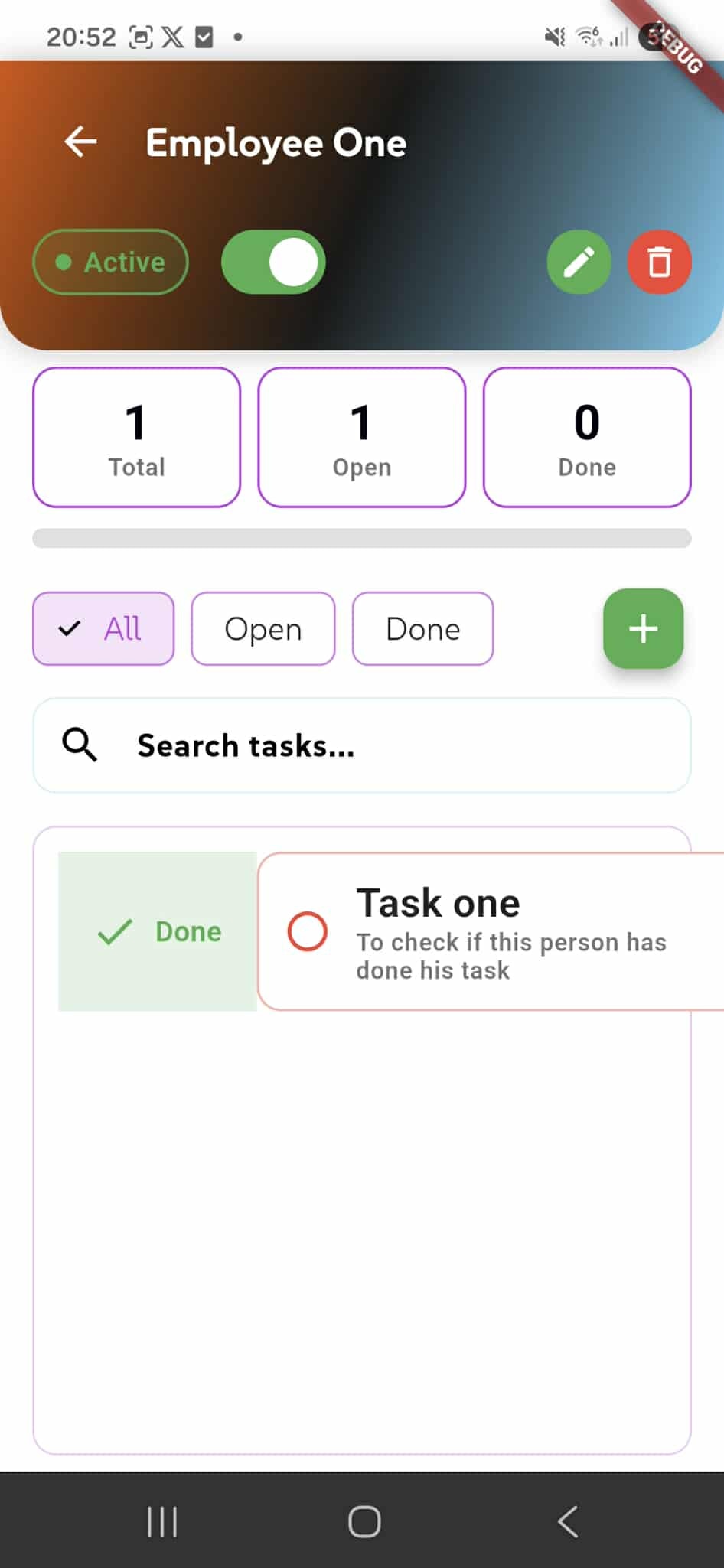
Once tasks are created, they appear in the employee's task list as interactive cards that can be managed with intuitive swipe gestures. The task statistics update automatically, showing "1 Total", "1 Open", and "0 Done" in this example.
Each task card displays the task title (e.g., "Task one") and a preview of the description (e.g., "To check if this person has done his task"). Tasks can be filtered using the tabs: "All" to view everything, "Open" for pending tasks, or "Done" for completed tasks.
The key feature is the swipe-to-complete gesture: users can swipe from right to left on any task card to reveal the completion action. When swiped, a green "Done" indicator with a checkmark appears on the left side of the card, allowing users to quickly mark the task as completed with a single gesture.
This swipe-based interaction provides a fast, mobile-optimized way to update task status without opening additional menus or dialogs. Once marked as done, the task moves to the "Done" filter and the statistics counters update accordingly - incrementing the "Done" count and decrementing the "Open" count, while "Total" remains unchanged as a historical record.
The search field remains available to quickly filter tasks by keyword, and the "+" button allows adding new tasks at any time.
Delete Task with Swipe Gesture
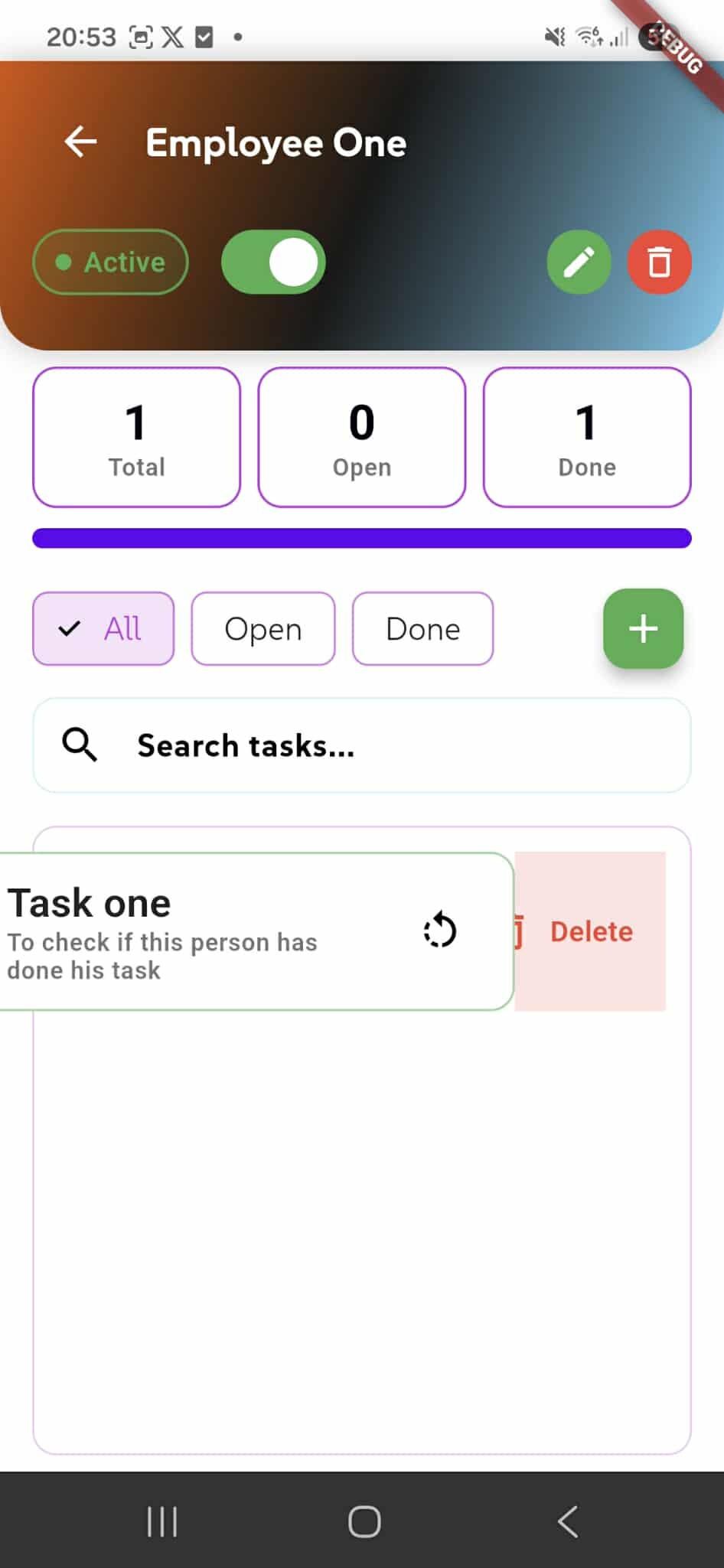
In addition to marking tasks as complete, users can permanently remove tasks using an intuitive swipe gesture. When swiping a task card from left to right, a red "Delete" action appears, allowing quick task removal.
In this example, the task has been completed (as shown by the updated statistics: "1 Total", "0 Open", "1 Done"), and a purple progress bar appears below the statistics cards indicating task completion progress. The circular refresh icon next to the task card provides additional interaction options.
The swipe-to-delete gesture offers a fast way to remove tasks that are no longer needed, outdated, or were created by mistake. When a task is deleted:
- It is permanently removed from the employee's task list
- The "Total" count remains unchanged (as it tracks all tasks ever created, including deleted ones)
- The "Open" or "Done" count decreases depending on the task's previous status
- The task cannot be recovered after deletion
This dual swipe system provides efficient task management: swipe left to mark complete, swipe right to delete. The search functionality and filter tabs continue to work seamlessly, allowing users to manage large task lists effectively.
Track Your Team's Performance
Charts Tab - Turn your numbers into visual insights that actually make sense. See colorful bar graphs and pie charts that show your team's performance at a glance, making it easy to spot who's doing well, find where work is piling up, and understand when your team is most productive. Whether you're checking task completion rates, comparing how employees are doing, or seeing how work is spread across your team, these charts help you make better decisions without getting lost in spreadsheets.
Real-Time Task Monitoring
Stay on top of what's happening with live task counts shown in easy-to-read cards:
Tasks Done (Green) - See your progress in action! The green card with a checkmark shows exactly how many tasks your team has finished. It's a quick win that feels good to see.
Remaining (Red) - Know what still needs doing. The red card highlights tasks that are waiting for attention, so you can make sure nothing gets forgotten or missed.