Getting Started
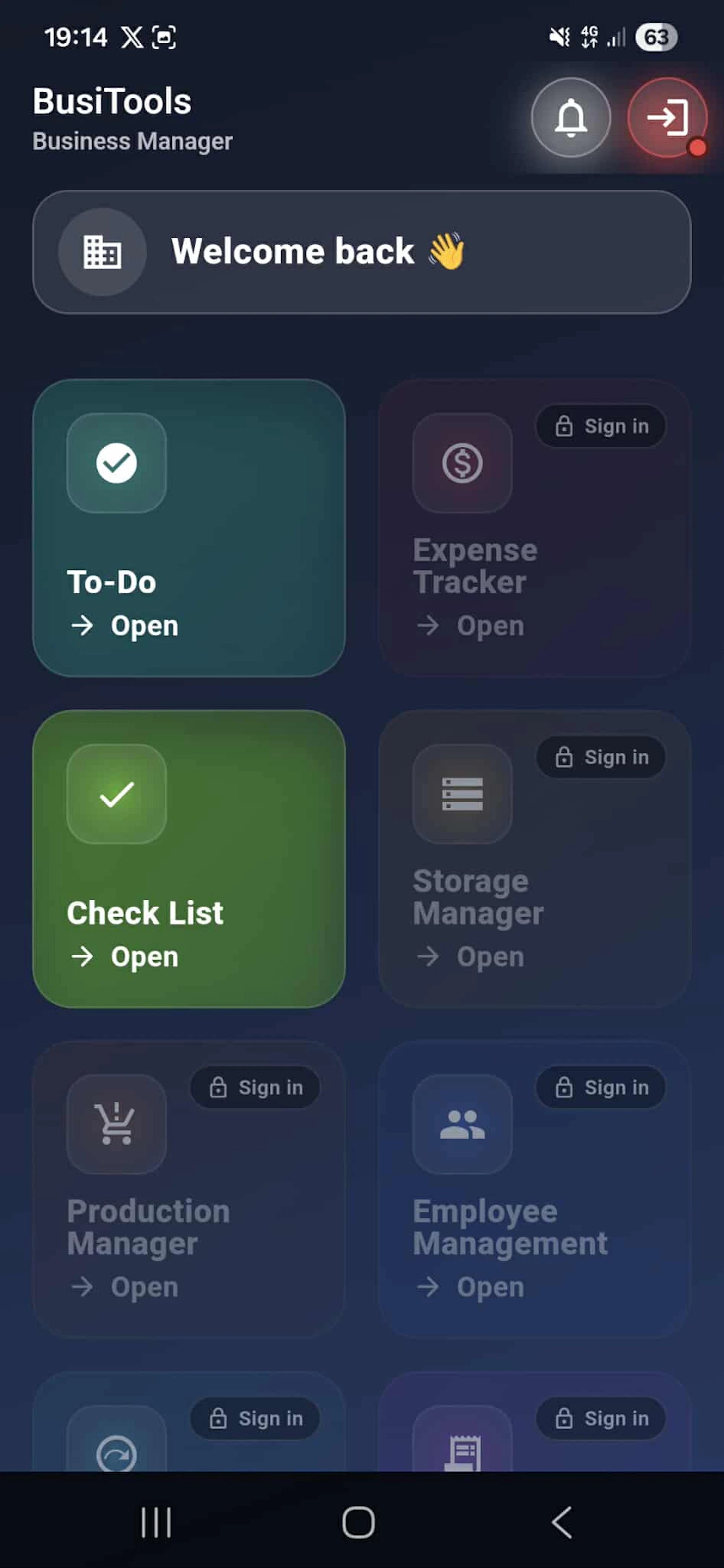
When you first install and open BusiTools, you'll be greeted with the home screen featuring a personalized "Welcome back 👋" message. This is your central dashboard where you can access all business management features. The home screen is designed to provide quick access to the most important tools you need to run your business efficiently.
BusiTools provides three core services that you can use immediately without signing in:
To-Do - Your personal task manager where you can create, organize, and track daily tasks and activities. Perfect for keeping your work organized and ensuring nothing gets forgotten.
Check List - Access and manage your business checklists. Create custom checklists for recurring processes, quality control, or any systematic workflow your business requires.
Informations - Access important app information, updates, and a direct link to the BusiTools website for additional resources, support, and feature updates.
These features are available instantly and don't require account creation, allowing you to start organizing your business right away.
Sign In
To access all premium features in BusiTools, you'll need to create an account or sign in to your existing one.
Signing In
If you already have a BusiTools account, simply:
- Tap on any feature that requires "Sign in" (such as Expense Tracker, Storage Manager, Production Manager, or Employee Management)
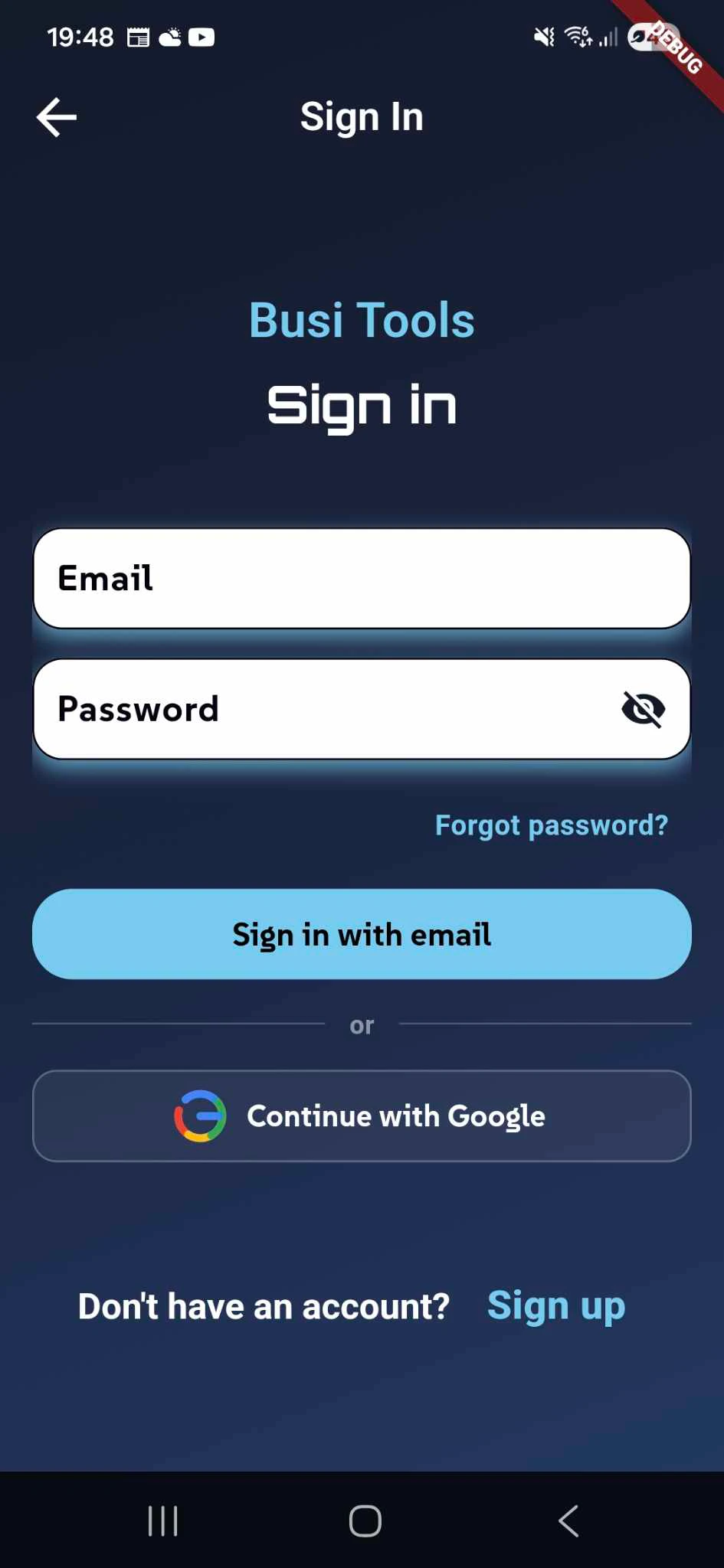
- Enter your Email address
- Enter your Password (you can toggle visibility using the eye icon)
- Tap the "Sign in with email" button
- "Sign in with Google" button
Your credentials will be securely stored, allowing you to access all business management tools.g Started
Sign-Up
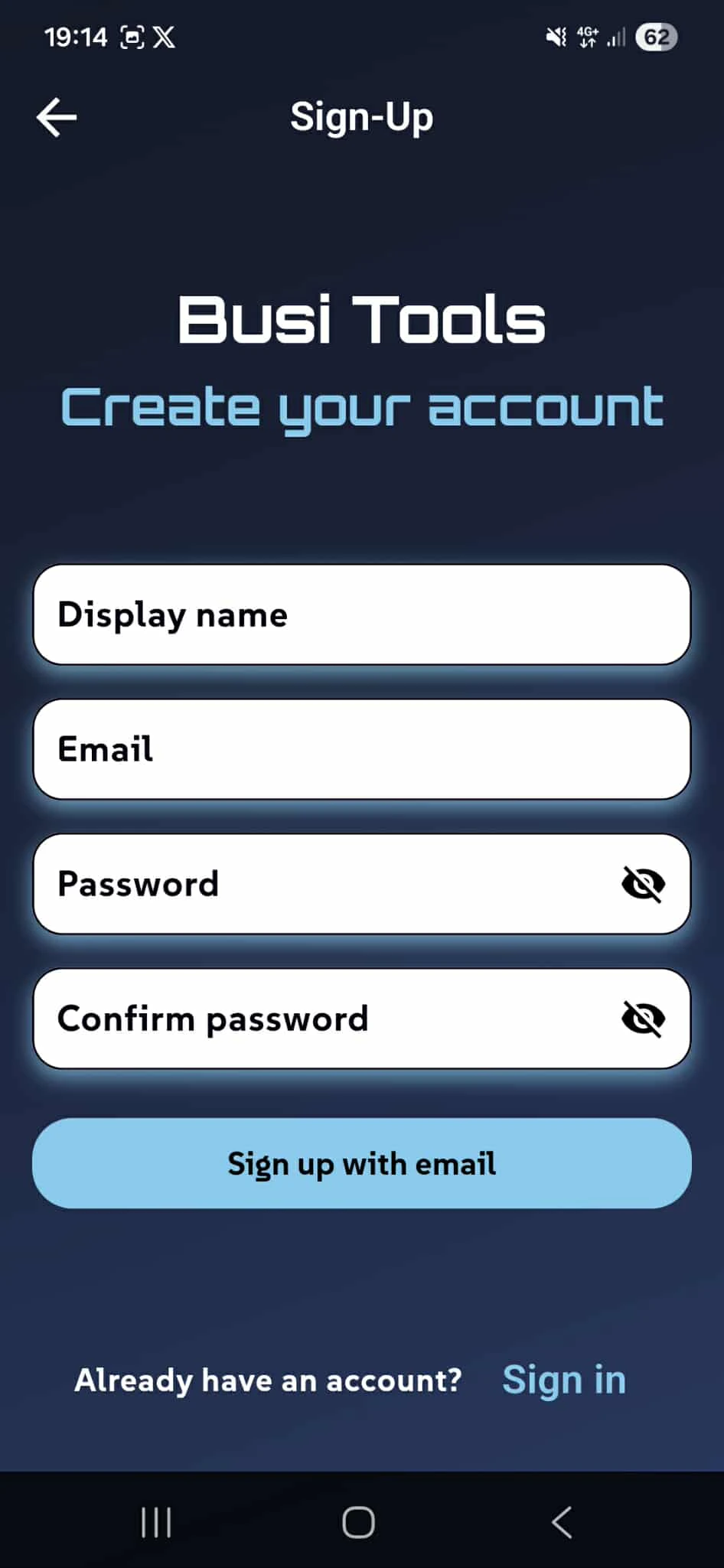
he Sign-Up screen makes it easy to create your new BusiTools account in just a few simple steps. Follow this guide to get started with full access to all business management features.
Registration Fields
To create your account, you'll need to provide the following information:
Display Name - Enter the name you want to be shown throughout the app. This can be your personal name, business name, or any preferred identifier.
Email - Provide a valid email address. This will be used for:
- Logging into your account
- Password recovery
- Important notifications and updates
- Account verification
Password - Create a strong, secure password to protect your business data. Use a combination of letters, numbers, and special characters for maximum security.
Confirm Password - Re-enter your password to ensure accuracy. Both password fields include a visibility toggle (eye icon) so you can verify your entry before submitting.
Completing Registration
Once all fields are filled correctly:
- Review your information for accuracy
- Tap the "Sign up with email" button
- You may receive a verification email - check your inbox and follow any confirmation steps
- Once verified, you'll have immediate access to all premium BusiTools features
Your Complete Dashboard
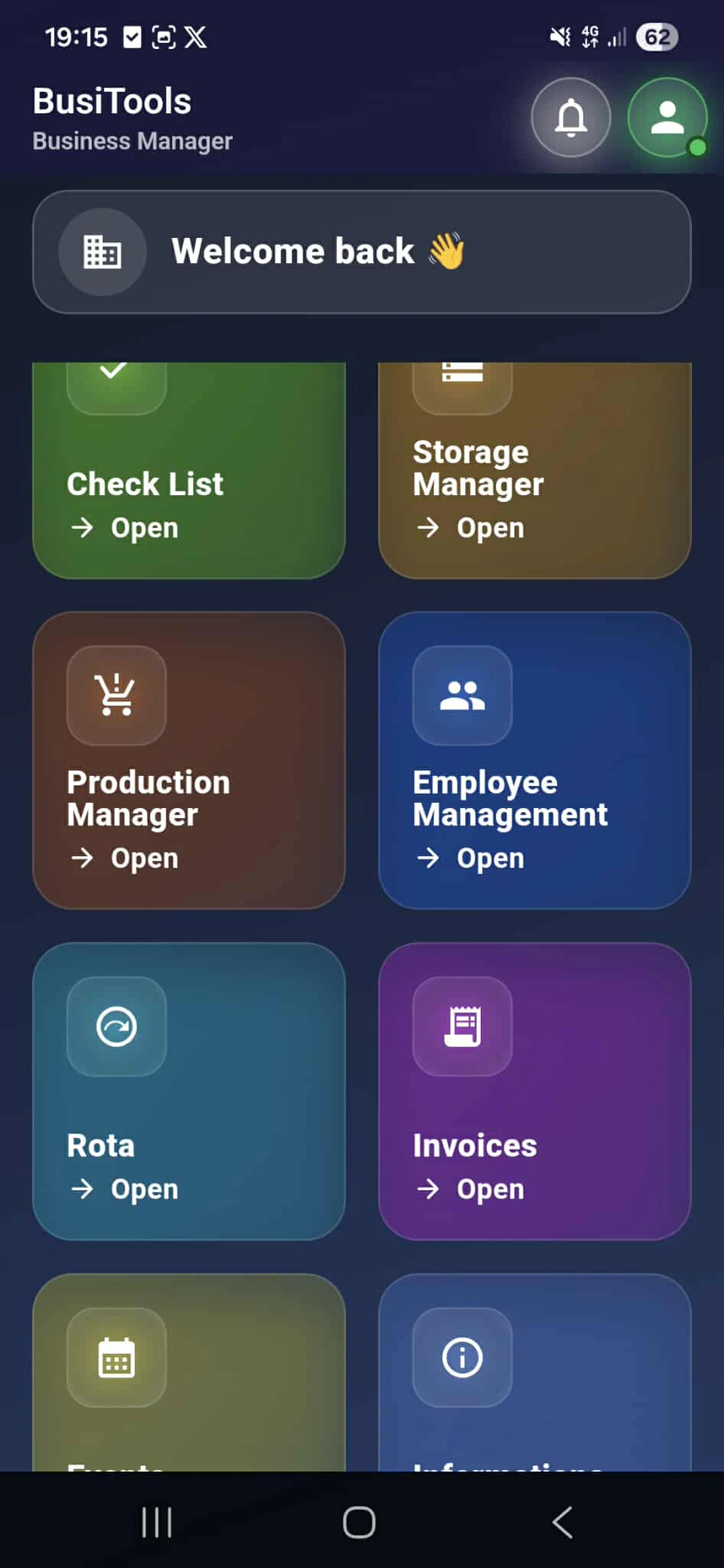
Once you've signed in successfully, your home screen expands to show all available features. You'll notice the profile icon (green indicator) in the top right corner, confirming you're logged in.
All Available Features
After signing in, you now have full access to the complete BusiTools suite:
Check List - Manage all your business checklists and systematic workflows
Storage Manager - Control inventory, track stock levels, and organize materials
Production Manager - Oversee manufacturing processes and material requirements
Employee Management - Handle workforce scheduling, rotas, and attendance
Rota - Create and manage employee shift schedules and work rotas
Invoices - Generate professional invoices for your clients and track payments
Events - Schedule and manage business events, meetings, and important dates
Informations - Access app information, updates, and the BusiTools website
Quick Navigation
Each feature card displays an "Open" button for quick access. Simply tap any card to launch that specific business management tool and start working immediately.
The notification bell icon in the top right keeps you updated on important alerts, while the profile icon provides access to your account settings.